











Save Emails to Contacts Automatically
Save Emails Related to Your eWay-CRM Contacts Automatically.
Tutorial for
eWay-CRM Online (Outlook for web, Mac, or PC)
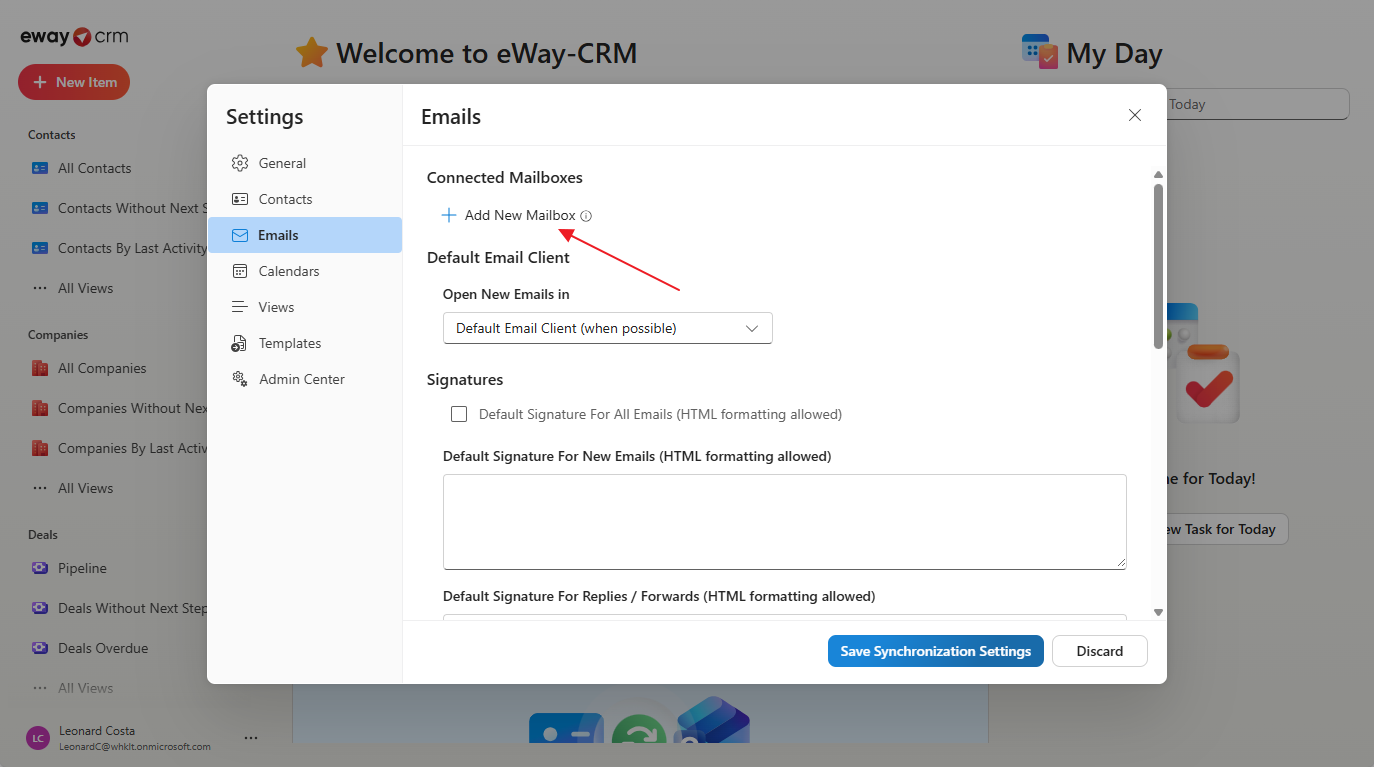
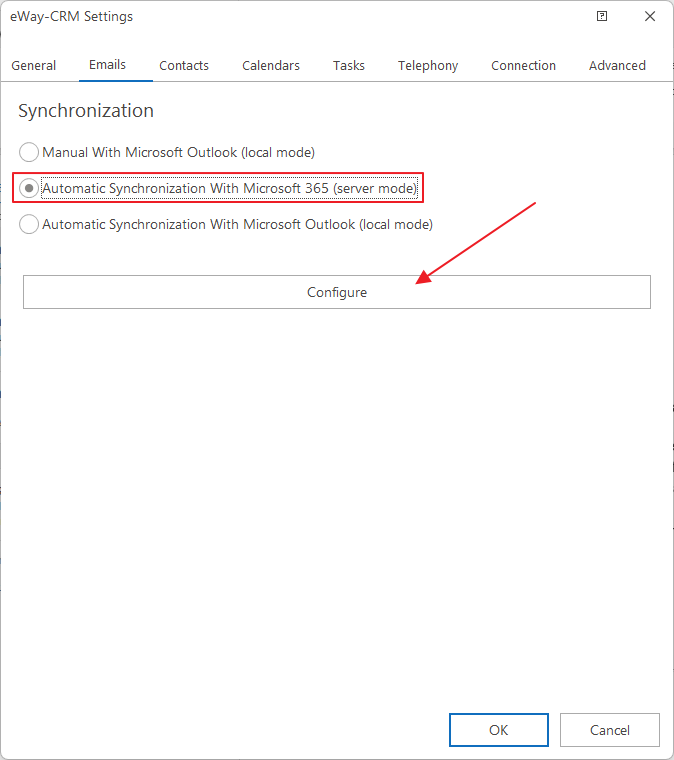
You can specify the conditions for automatically saving emails to contacts in Settings > Emails.
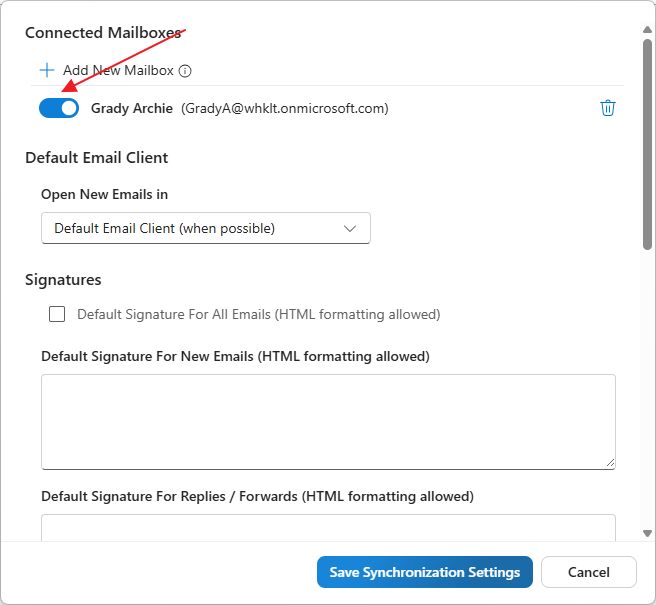
If you have already signed in to your Microsoft 365 account, you will see it here. If not, please sign in to grant eWay-CRM the necessary access.
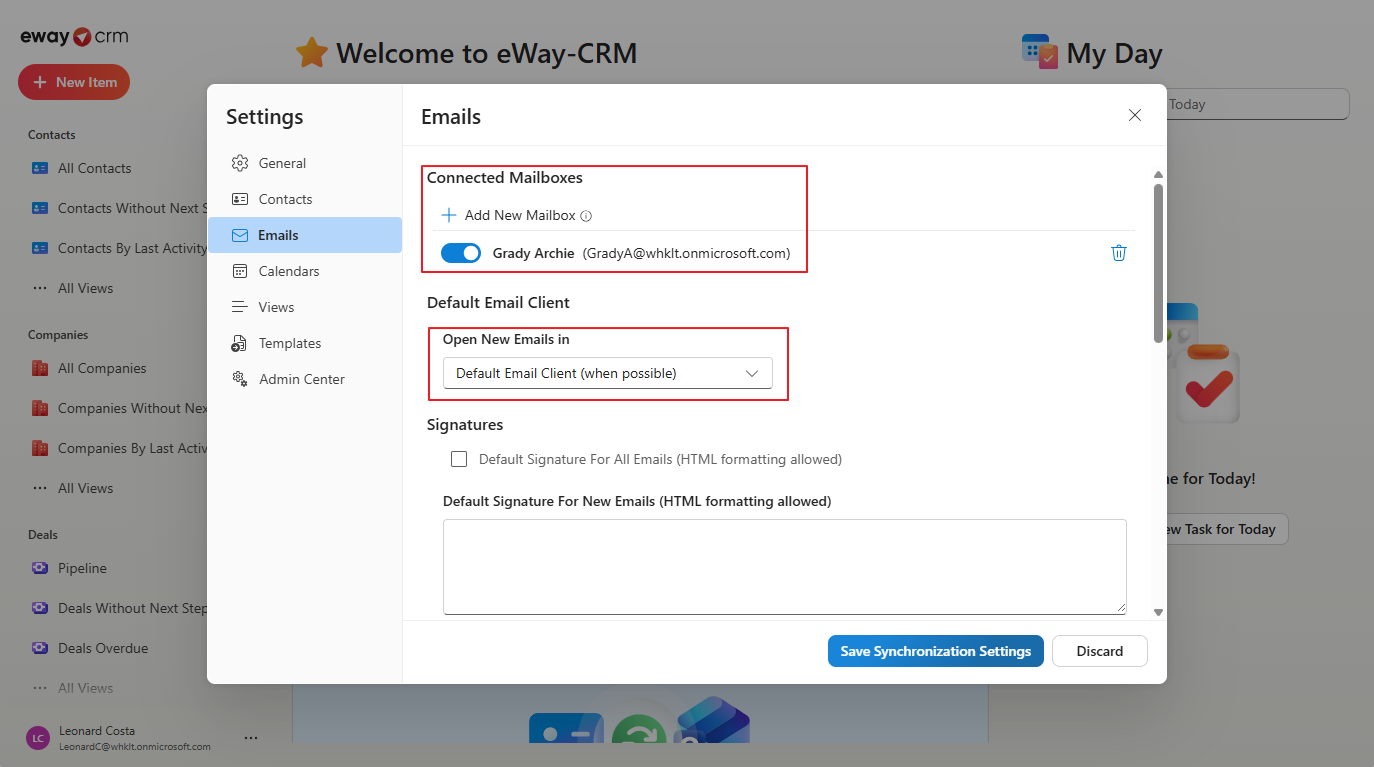
After logging in, you will immediately see the email account whose emails will be automatically saved to eWay-CRM. You can have multiple accounts here depending on your needs.
Determine how new emails, replies, or forwards that you want to create from eWay-CRM will open.
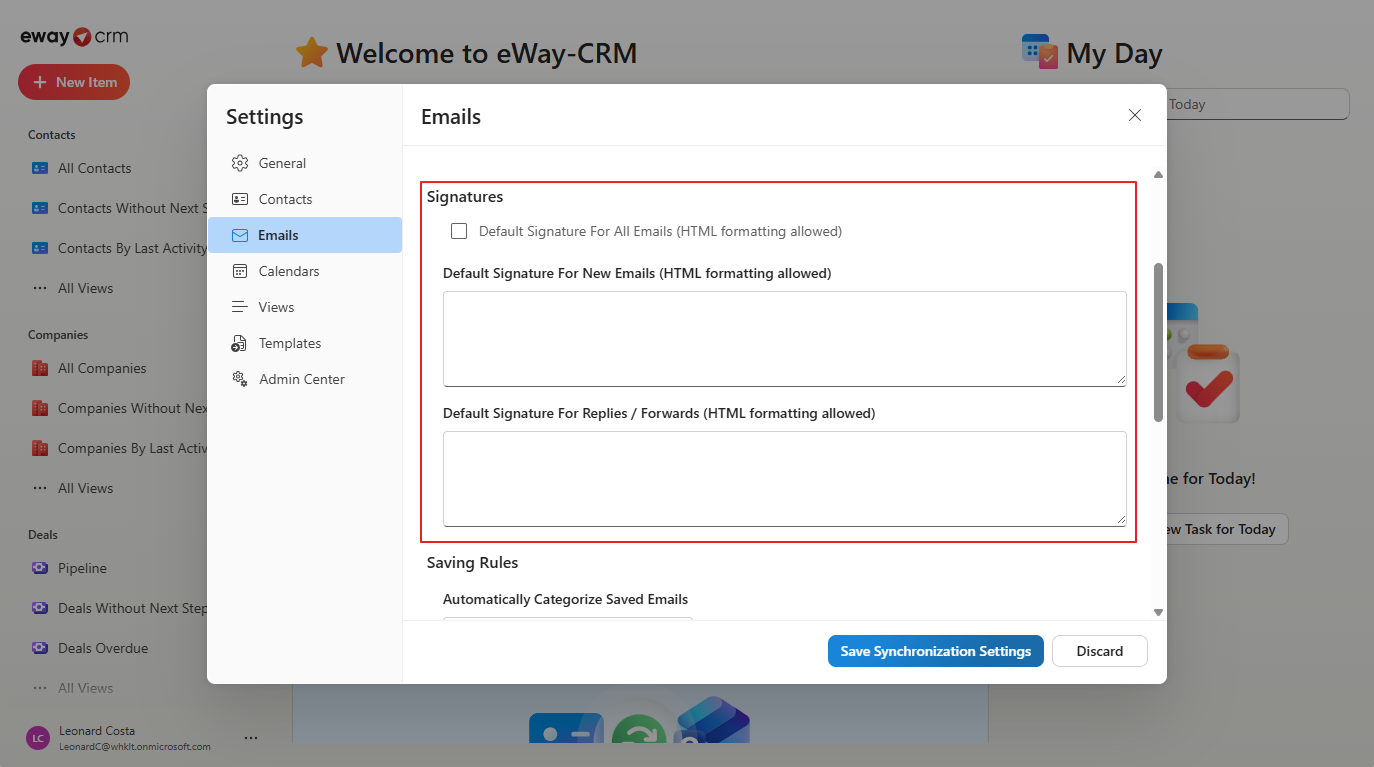
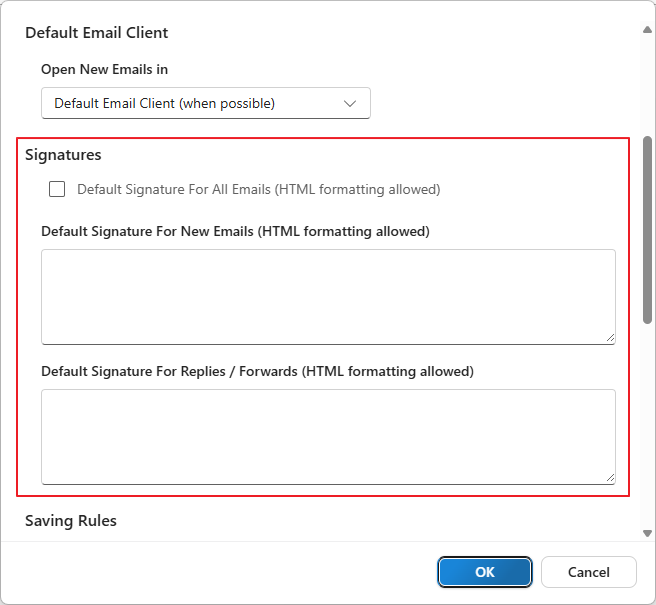
- For emails you send from eWay-CRM, you can specify what signatures they will have. You can set a signature separately for new emails and for replies/forwards, or just use one signature for all.
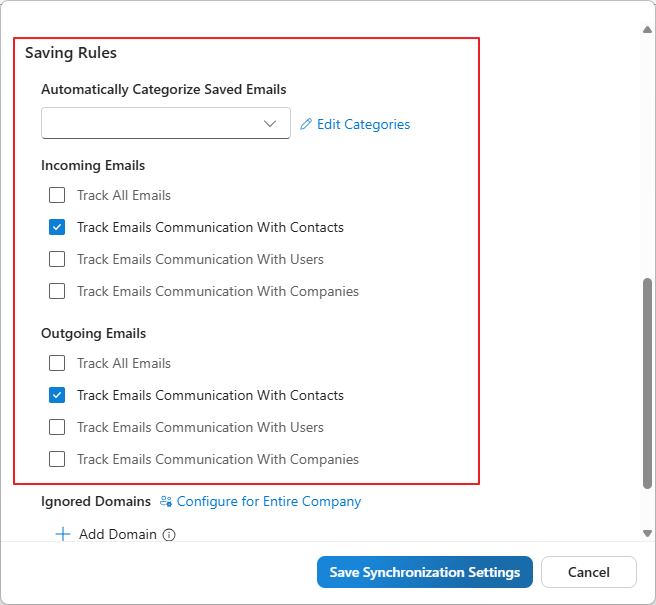
Another setting, Automatically categorize saved emails, determines which category will be automatically added to the email.
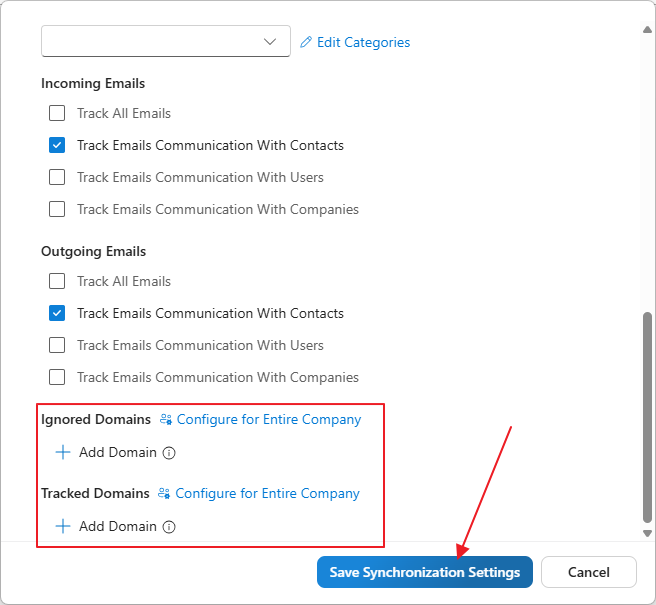
As the main settings, check the options Automatically track emails from contacts and Track emails from contacts. Emails are tracked based on both the recipient’s email address and the sender’s email address.
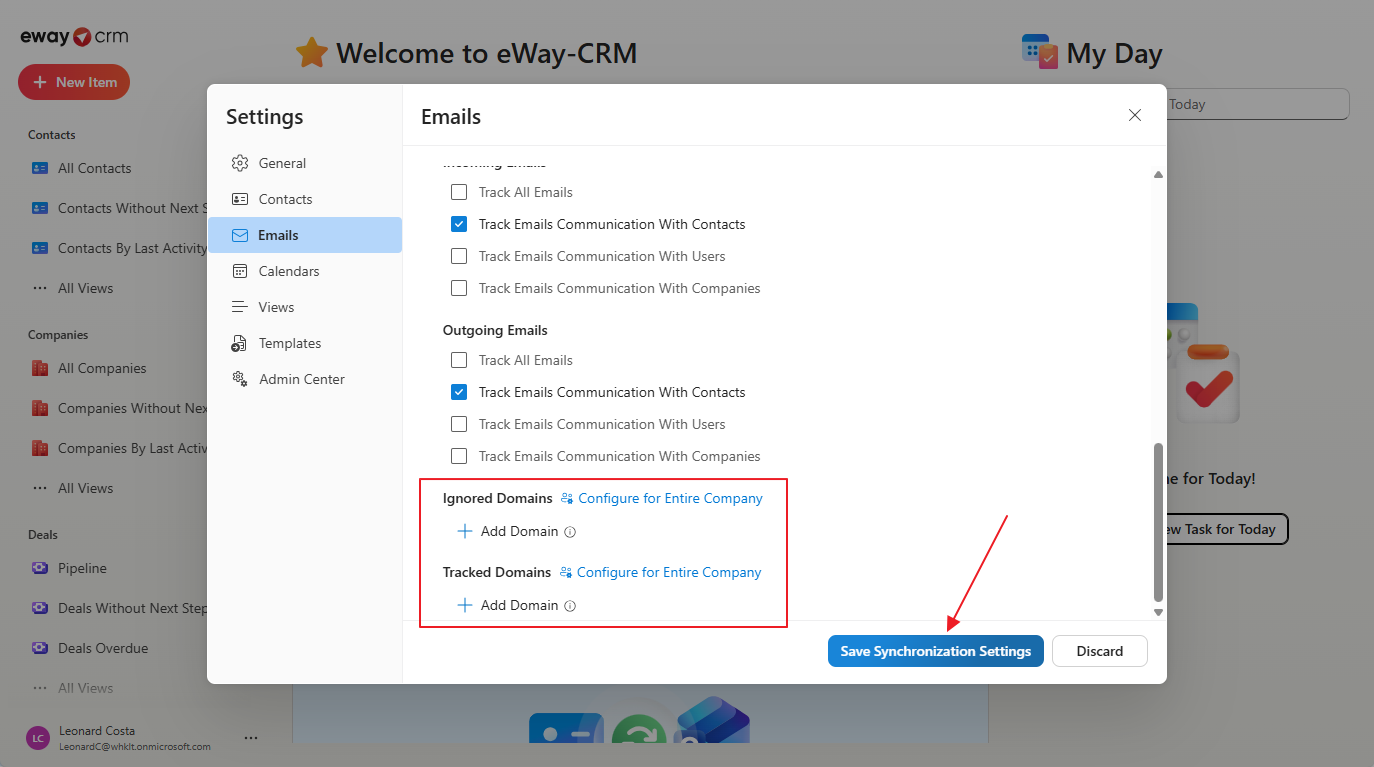
The last setting you should pay attention to is Ignore domains, which can be used, for example, if you do not want to track internal communication. This feature allows you to set domains from which emails will never be saved.
Enter the domains to be ignored and click Save Synchronization Settings to confirm the complete settings.
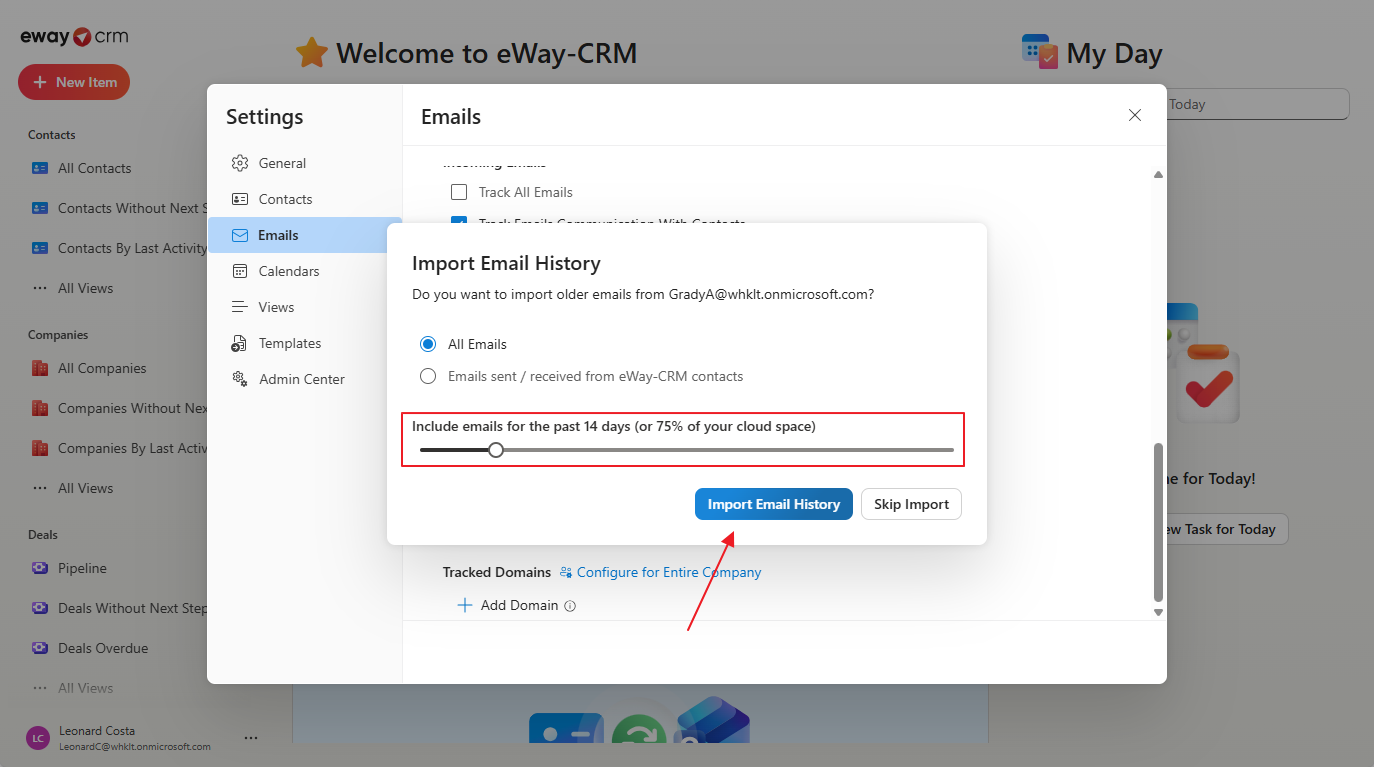
- Once you are done with the settings, the system will start tracking your emails and will also ask if you want to download older emails. Select the time period for which you want to download the emails and click Import Email History.
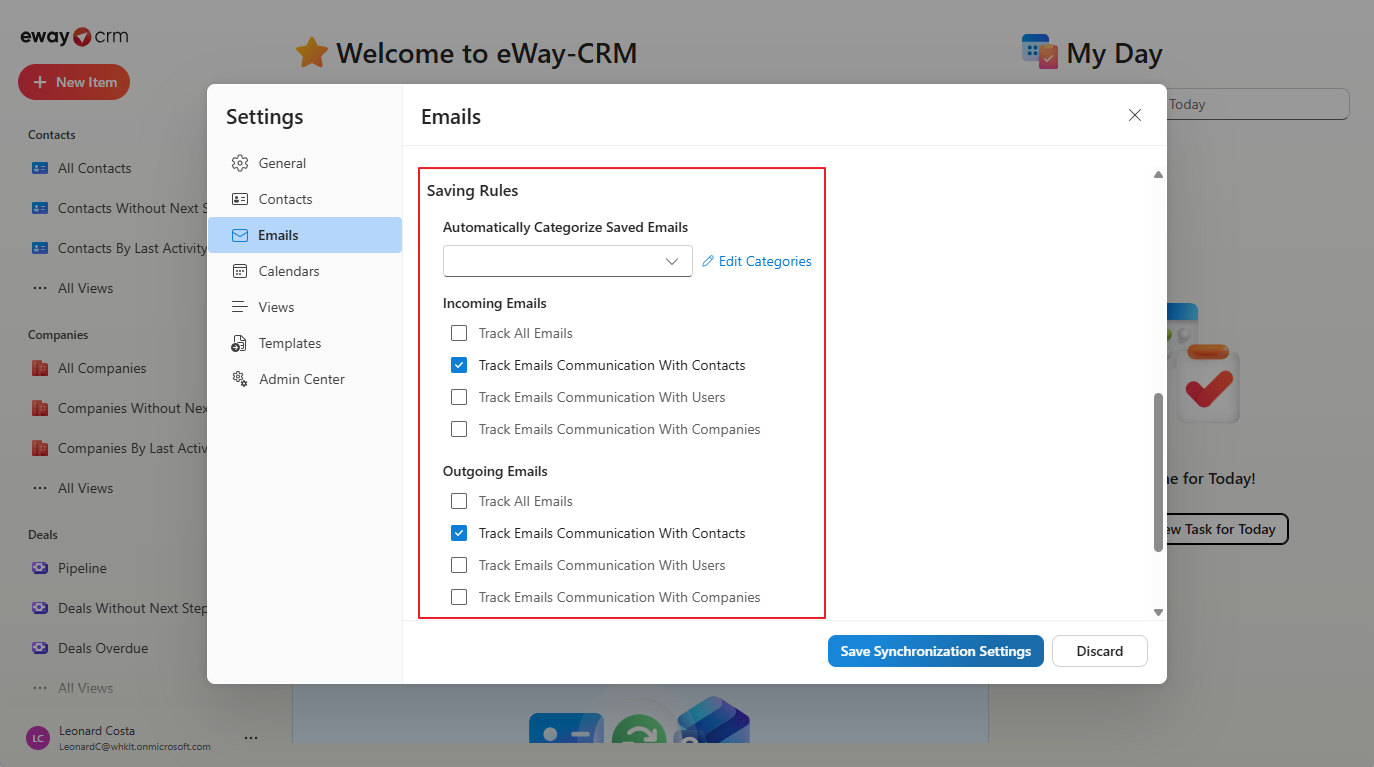
Most companies want to track mail from companies and contacts, but not from users, as they do not want internal communication to be accessible to everyone.
eWay-CRM Desktop
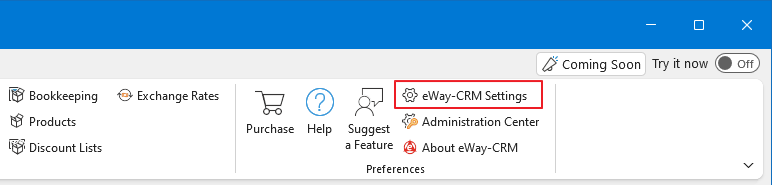
- You can specify conditions for saving emails to contacts automatically in eWay-CRM Settings > Emails.
After logging in, you will immediately see the email account whose emails will be automatically saved to eWay-CRM. You can have multiple accounts here depending on your needs.
Determine how new emails, replies, or forwards that you want to create from eWay-CRM will open.
- For emails you send from eWay-CRM, you can specify what signatures they will have. You can set a signature separately for new emails and for replies/forwards, or just use one signature for all.
Another setting, Automatically categorize saved emails, determines which category will be automatically added to the email.
As the main settings, check the options Automatically track emails from contacts and Track emails from contacts. Emails are tracked based on both the recipient’s email address and the sender’s email address.
The last setting you should pay attention to is Ignore domains, which can be used, for example, if you do not want to track internal communication. This feature allows you to set domains from which emails will never be saved.
Enter the domains to be ignored and click Save Synchronization Settings to confirm the complete settings.
Most companies want to track mail from companies and contacts, but not from users, as they do not want internal communication to be accessible to everyone.
Was it useful?



Continue here
- Save Emails to Contacts Manually
- Import Contacts from Microsoft 365
- Import Contacts from Microsoft Outlook
- Import Contacts From Emails
- Import Data From Microsoft Excel
- Import Older Emails
- Activate Calendar Synchronization
- Tag/Categorize Emails Saved in eWay-CRM
- Save Emails to Companies Automatically with Microsoft 365
- Save Emails to Companies Manually
- Synchronize Contacts with Microsoft 365