



Relate an Existing Meeting to eWay-CRM
Applies to
Tip – A complete history for every client
You can link a meeting that’s already in your Outlook calendar to a contact, company or other item in eWay-CRM afterwards. Your colleagues then see every meeting you’ve had with the client.
Note
All of the following assume that calendar synchronization is turned on. To learn how to set it up, see Synchronize Calendar with Outlook.
You can link a meeting to eWay-CRM manually in the eWay-CRM add-in, or let eWay-CRM link it automatically based on the invited attendees or an email address in the note.
Contents
Manually in the eWay-CRM Add-in
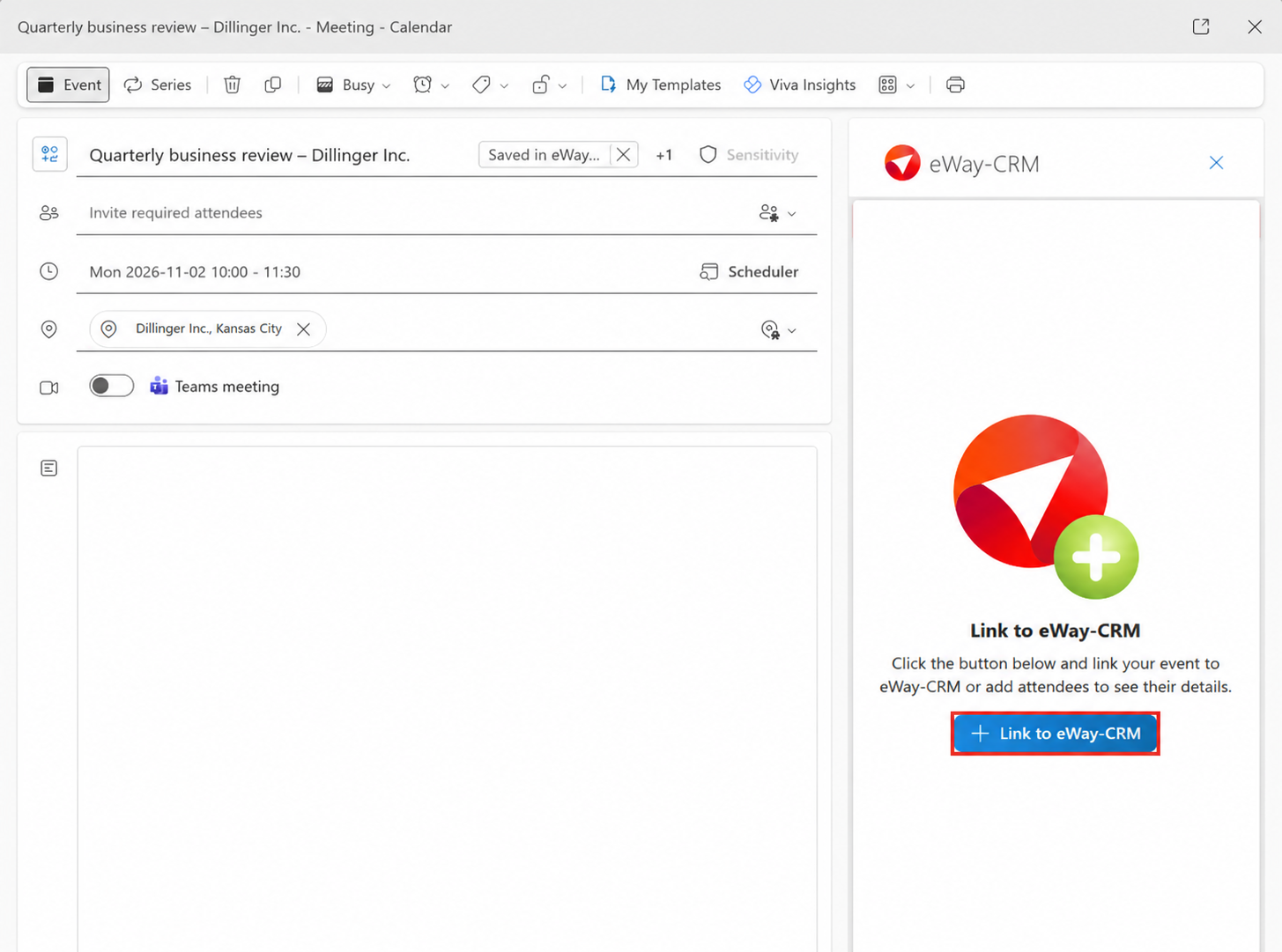
- Open the meeting in your Outlook calendar, click Apps and choose the eWay-CRM add-in.
- If the meeting isn’t linked to anything yet, the add-in pane shows Link to eWay-CRM. Click the Link to eWay-CRM button.
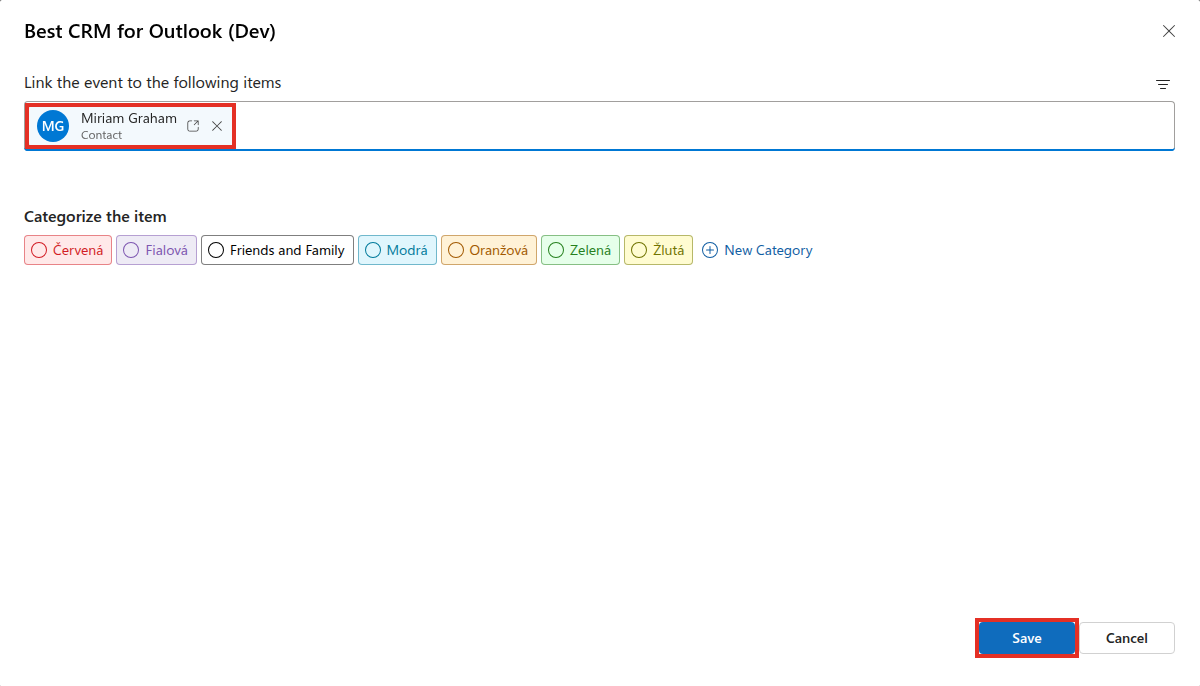
- In the Link the event to the following items window, start typing the name of a contact or another item and select it from the list. You can also assign a category to the meeting under Categorize the item. Click Save.
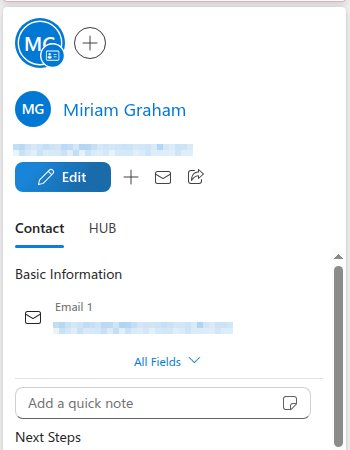
- The add-in pane then shows the card of the item the meeting is linked to.

By Inviting a Contact
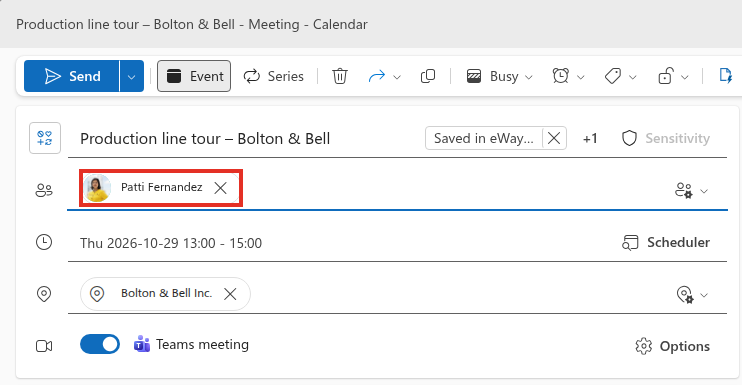
- Open the meeting in your Outlook calendar and add a contact whose email address is in eWay-CRM to the attendees.
- Click Send. The meeting is linked to the contact and appears on the contact’s Calendar tab.
With an Email Address in the Note
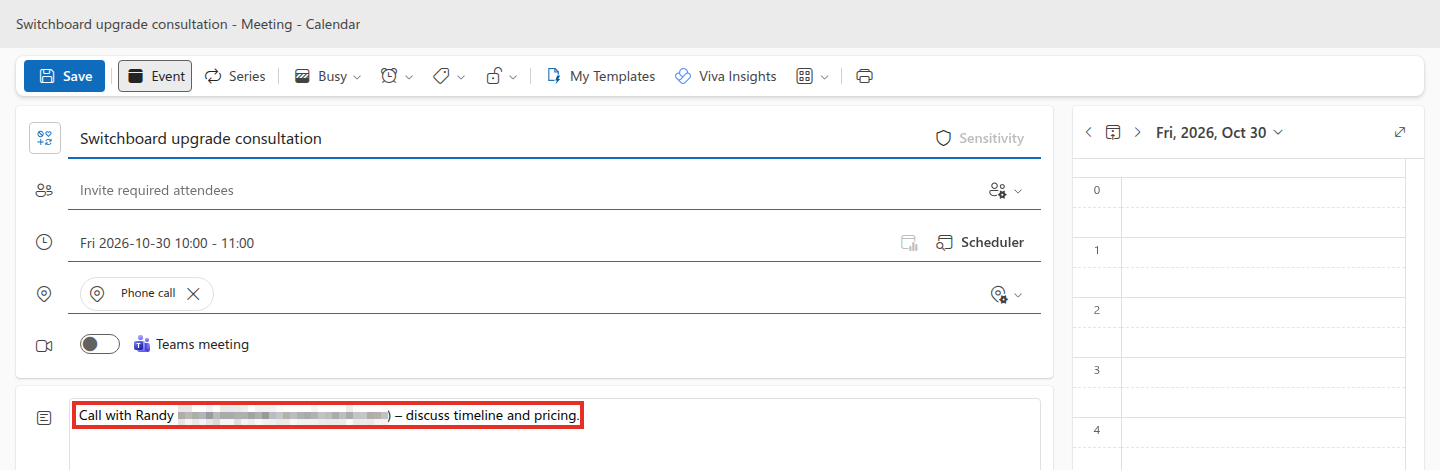
If you don’t want to invite the contact, for example to a phone call, just type their email address in the note. This works when Automatically Link Events Based on Email Addresses in the Event Note is enabled on the Calendars tab in Settings, together with the modules events should be linked to. You’ll find how to set this up in step 5 of Synchronize Calendar with Outlook.
- Type the contact’s email address in the meeting note.
- Save the meeting. eWay-CRM links it to the contact the address belongs to.
Was it useful?

Thank you for your feedback.

