



Create a Meeting in eWay-CRM
Applies to
Tip – The meeting goes straight to the client
When you create a meeting from eWay-CRM, it is linked to the contact you’re meeting with right from the start. You’ll find it on the contact’s record without having to link anything by hand.
Note
Meetings are only saved to eWay-CRM if you have calendar synchronization turned on. To learn how to set it up, see Synchronize Calendar with Outlook.
You can create a new meeting from the eWay-CRM add-in in Outlook or from eWay-CRM Online. Either way, a new Outlook meeting opens that is already linked to the contact. A meeting created directly in your Outlook calendar is also saved to eWay-CRM, but it is only linked to items based on the attendees’ email addresses.
Contents
From the eWay-CRM Add-in in Outlook
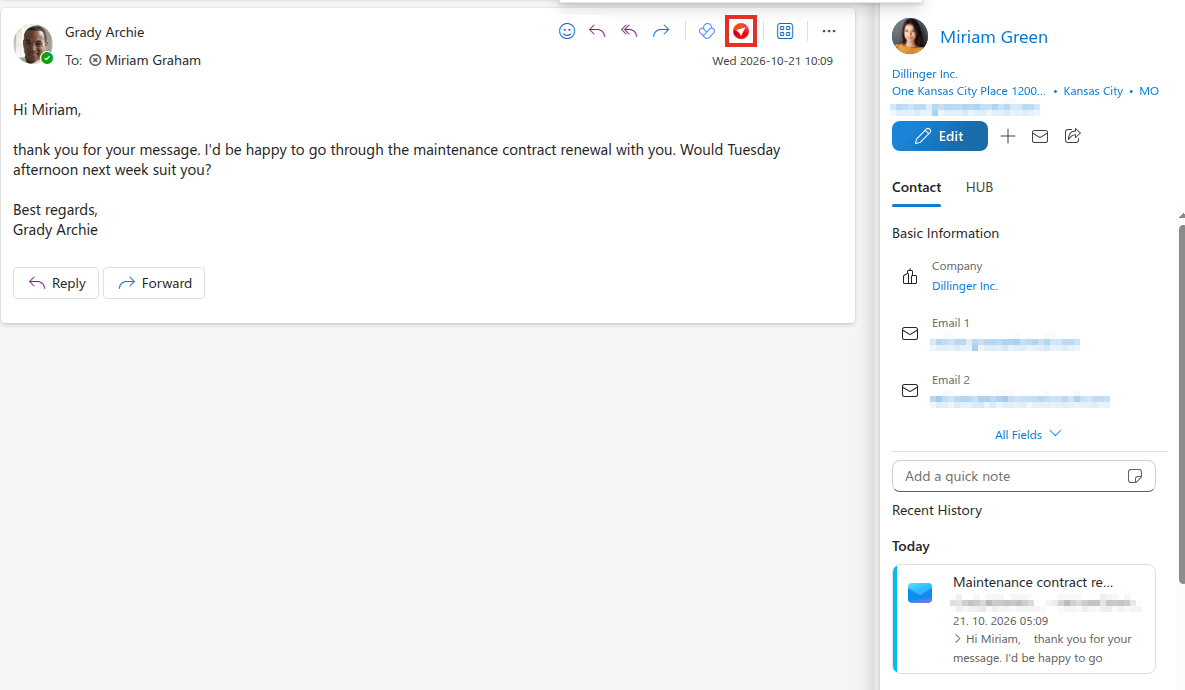
- In Outlook, open an email from the contact you want to meet with and click the eWay-CRM add-in icon.
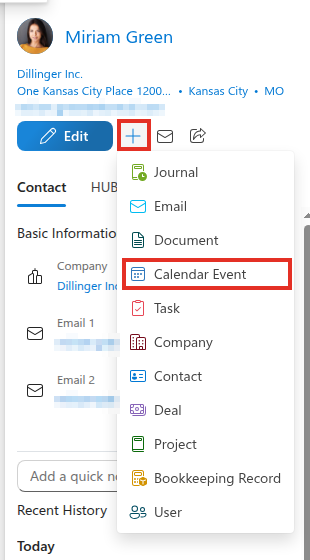
- The add-in pane shows the contact card. Click + and choose Calendar Event.
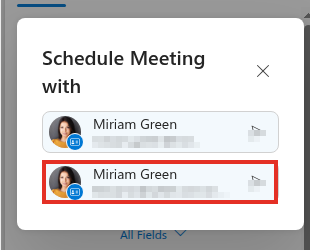
- If the contact has more than one email address, choose the one to send the invitation to in the Schedule Meeting with window.
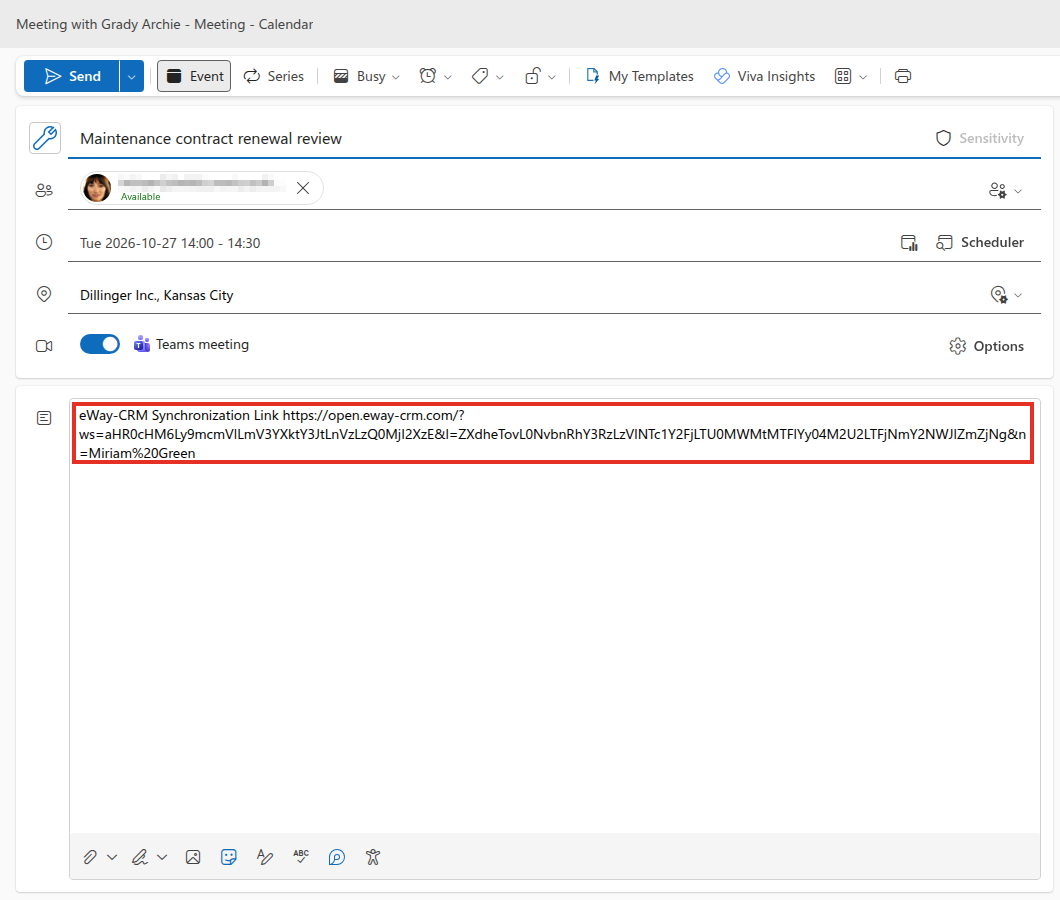
- A new meeting opens with the contact already added as an attendee. The note contains an eWay-CRM Synchronization Link that tells eWay-CRM which contact the meeting belongs to.
- Edit the subject, pick the date, time and location, and click Send.
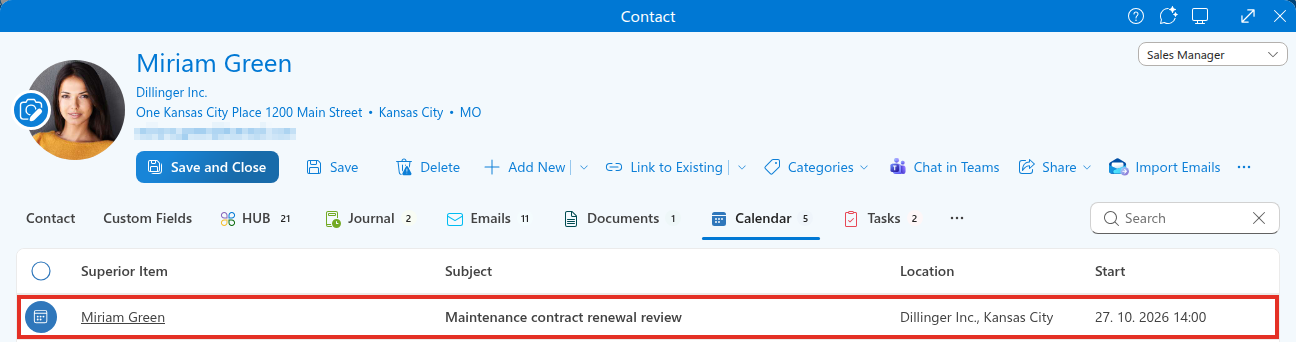
- The meeting is saved to eWay-CRM and appears on the contact’s Calendar tab.
From eWay-CRM Online
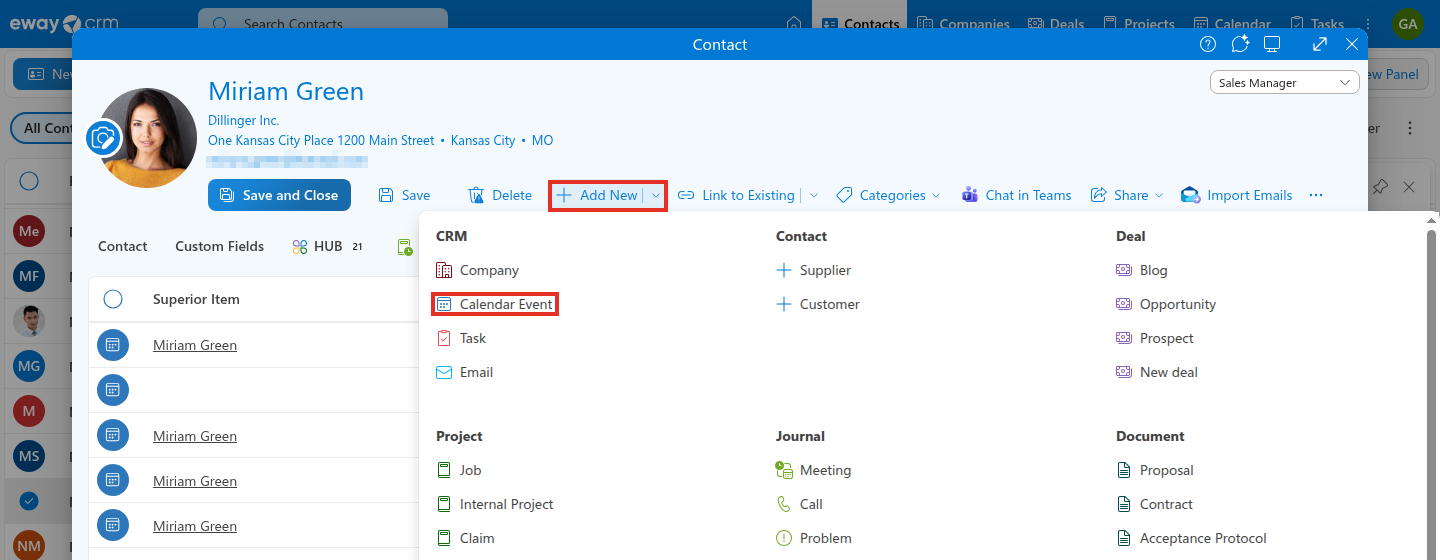
- Open the contact, click the arrow next to Add New and choose Calendar Event.
- A new meeting opens in Outlook on the web with the contact as an attendee and the synchronization link in the note. Then continue with steps 5 and 6 of the previous section.
Directly in the Outlook Calendar
- Create a meeting in your Outlook calendar as usual and invite the attendees.
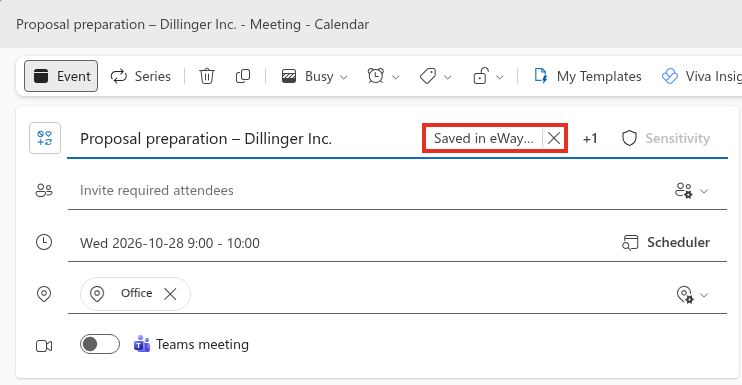
- Once you save it, synchronization saves it to eWay-CRM and the meeting gets a category that shows you in Outlook that it’s saved in eWay-CRM.
- eWay-CRM links the meeting to the contacts whose email addresses are among the attendees. If you need to link it to something else, such as a deal, follow Link an Existing Meeting to eWay-CRM.
Was it useful?

Thank you for your feedback.

