










Activate Calendar Synchronization
Applies to
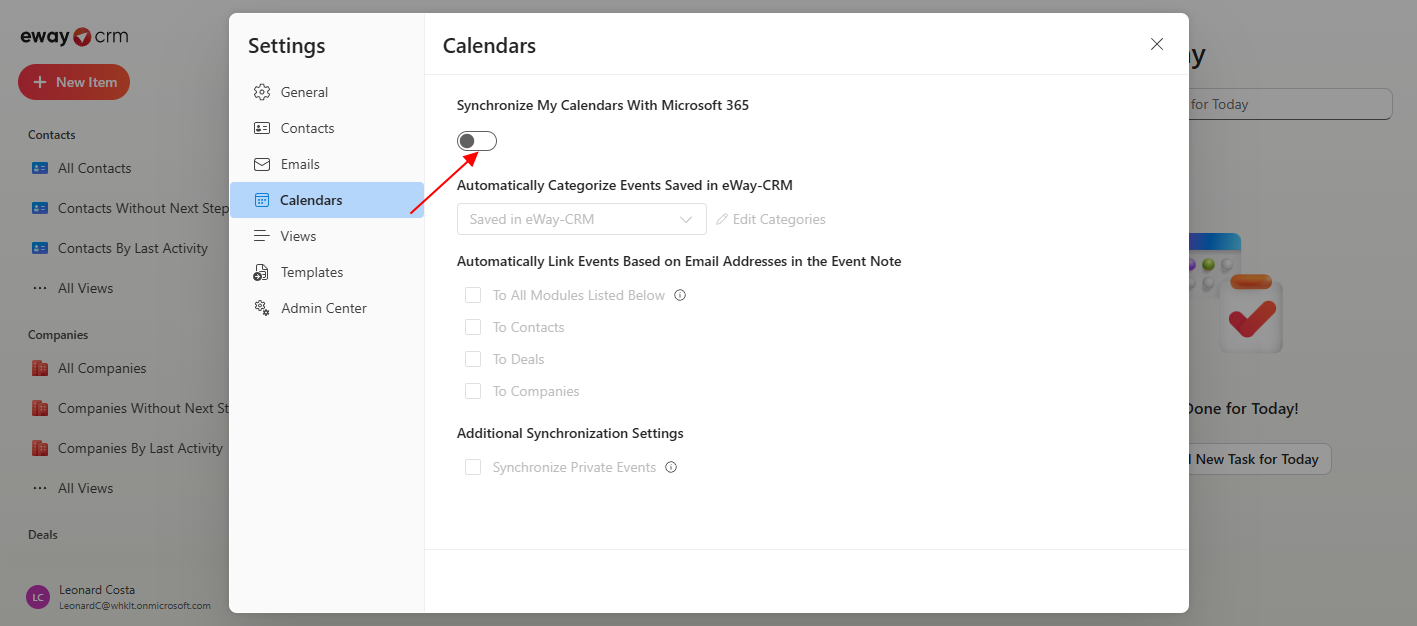
- Go to the Settings of your eWay-CRM Online to the Calendars section and click the button to turn on synchronization. Log in to your Microsoft 365 account.
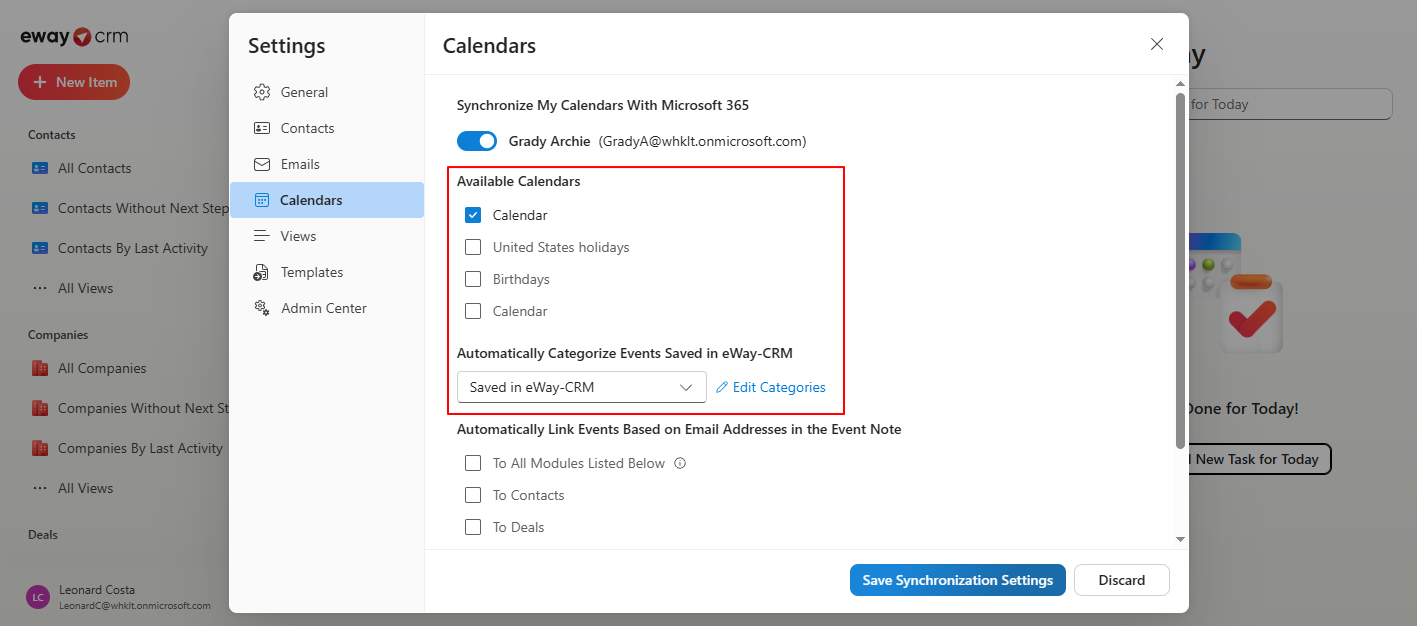
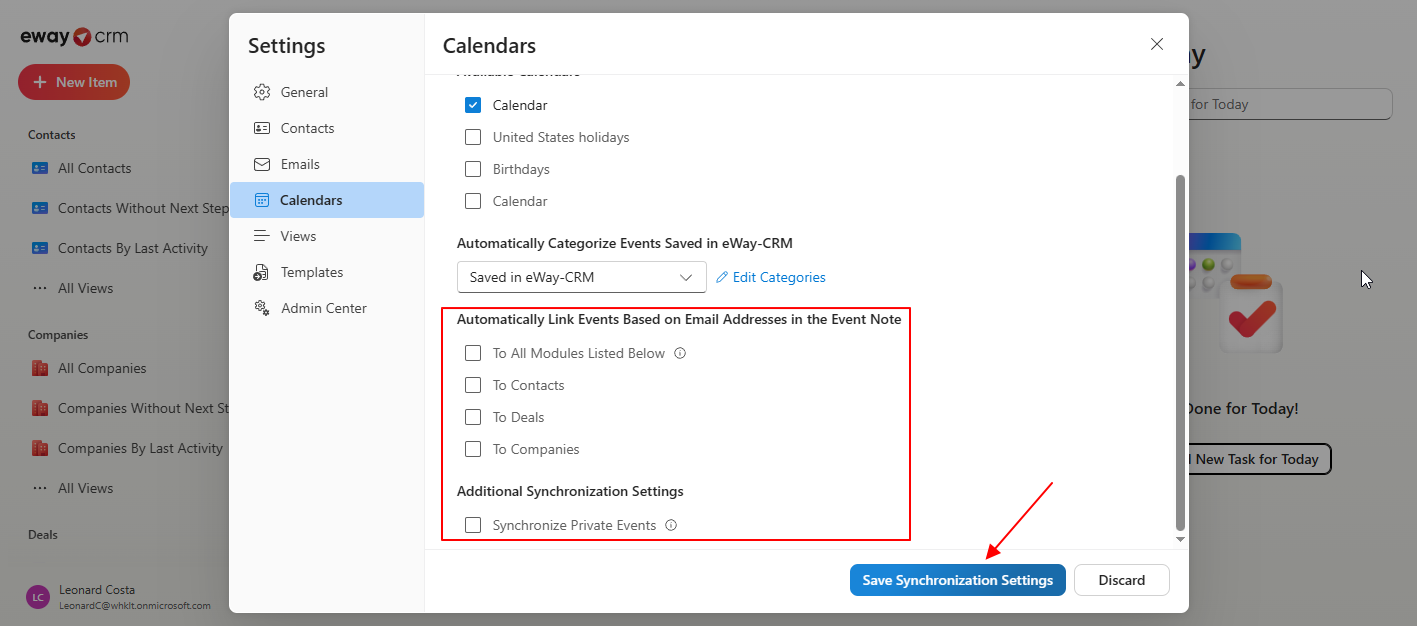
Once the calendars associated with your Microsoft 365 account are loaded, check those you want to synchronize.
You can also specify how saved events will be automatically categorized.
You can check whether events should be related to items by the email address specified in the note. If the event contains email addresses in the note, eWay-CRM will attempt to find matching contacts, deals, and companies and relate the event with them.
Subsequently, you just specify whether you also want to synchronize events that you have marked as private.
If you are satisfied with the settings, just click on Save Synchronization Settings.
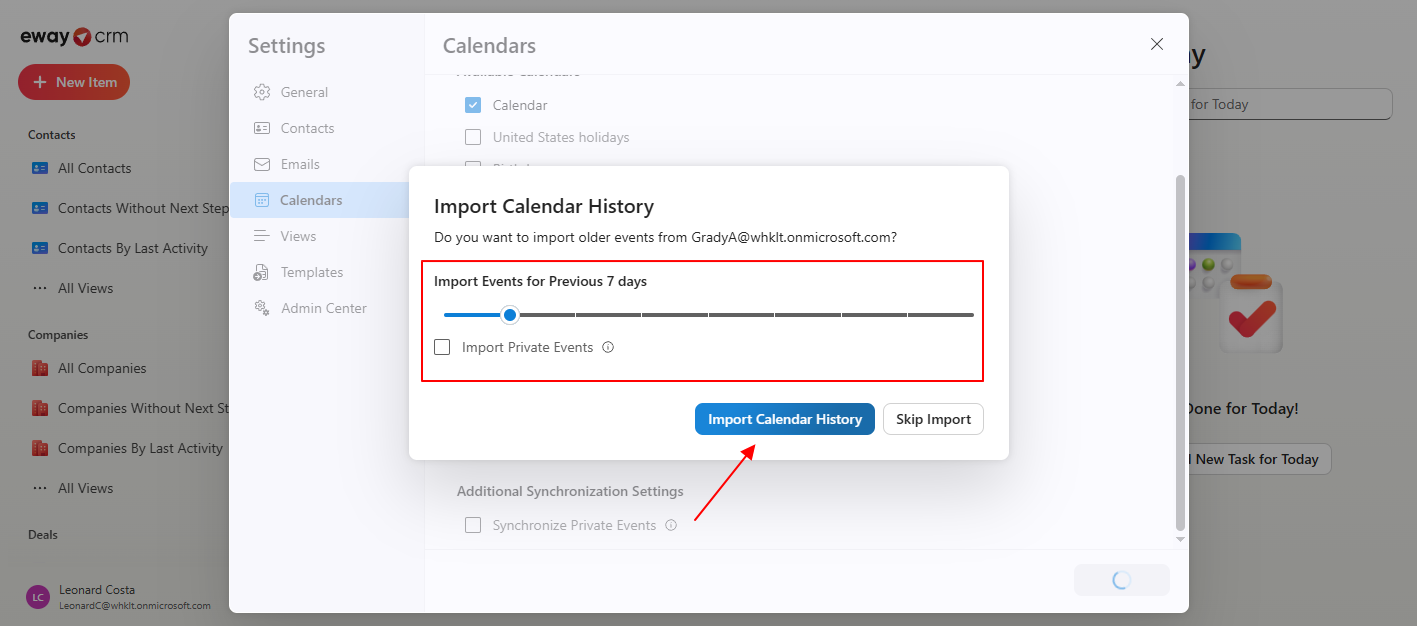
- After saving, you have the option to upload old events that would otherwise not be saved. Specify the time interval for which the events should be downloaded, or whether old private messages should be downloaded as well. Then just click on Import Calendar History.
- From now on, your synchronization is active, and events you save in your Microsoft 365 account will be saved into eWay-CRM and related to items. You can then easily access the Calendar directly in eWay-CRM as well. It will open by clicking on Calendar in the main menu.

Was it useful?

Thank you for your feedback.