












Import Data From Microsoft Excel
To Switch from Other CRM Software in Few Clicks.
Tutorial for
eWay-CRM Online
The function is presented on the Companies module, but it works exactly the same on other modules (with the exception of Bookkeeping and Users modules, where import is not enabled).
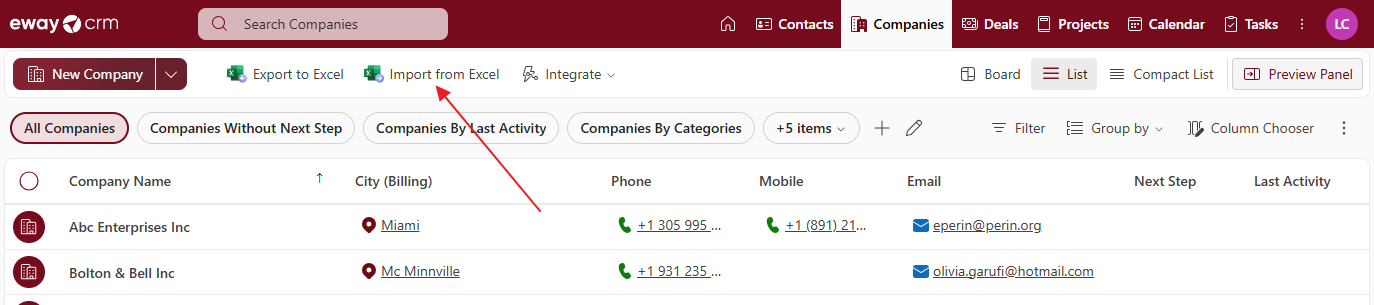
- In the top toolbar, click Import From Excel. In the Contacts module, you need to select Import > Import From Excel.
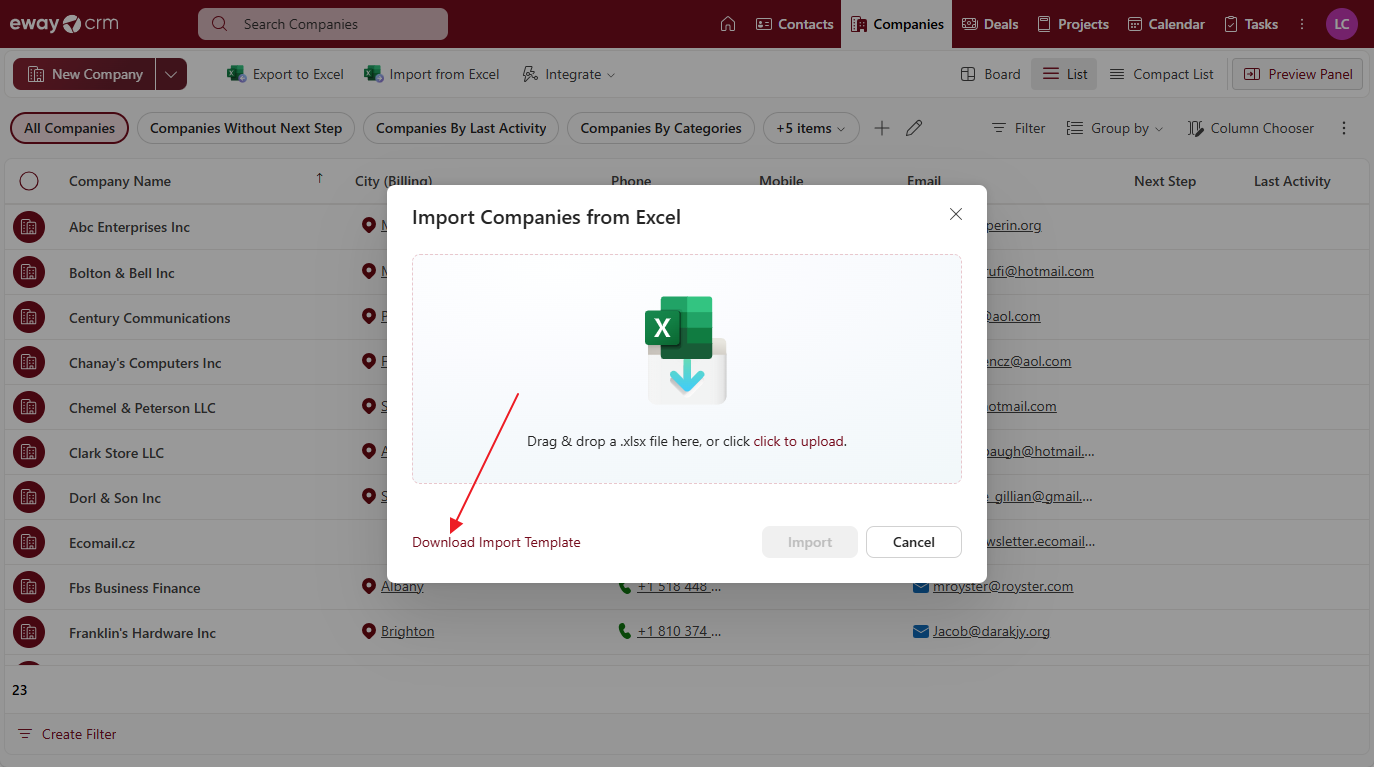
- A dialog box will appear where you can directly insert the file for import. However, it is preferable to save the template first – click Download Template for Import.
- An Excel file will be saved, which you can open. It contains all the columns that the module has in its detail. Here you can fill in the values and be sure that they are in the correctly named columns.
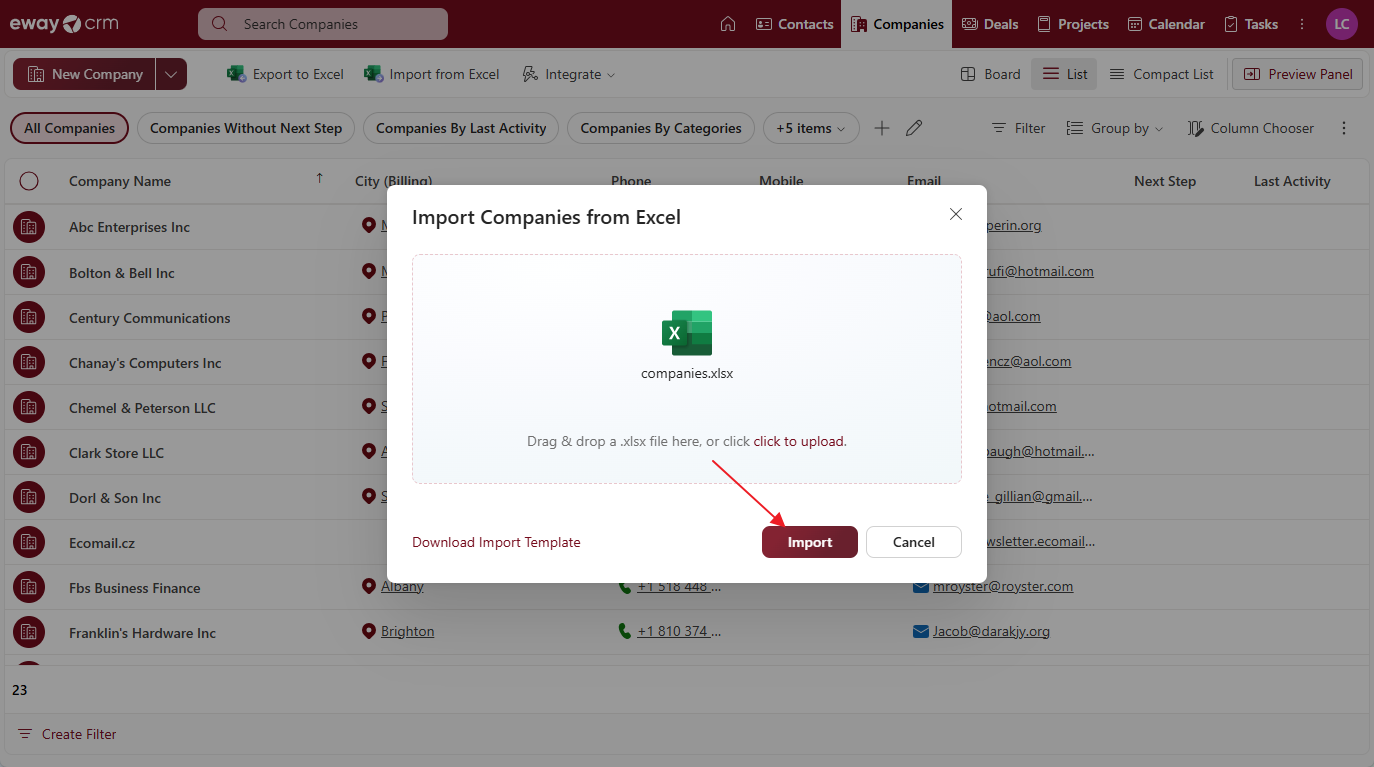
- Once your file is ready and saved, insert it into the dialog box and click Import.
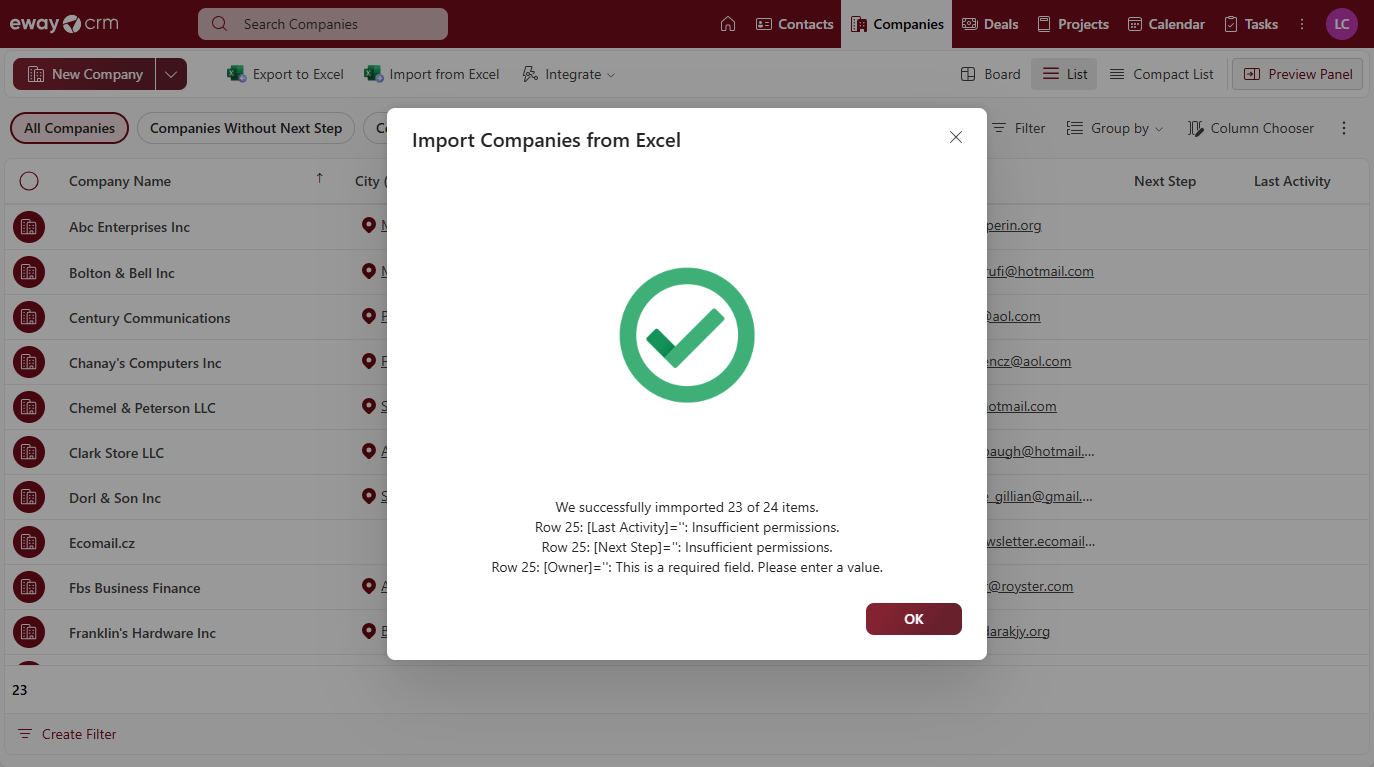
- The import itself may take a while; you can safely leave the import running in the background and continue working with eWay-CRM. Once it is completed, you will see a dialog about its successful execution, or with listed errors that occurred. The final dialog is designed so that you can easily track down any errors, correct them, and import the remaining items that were not imported.
 Warning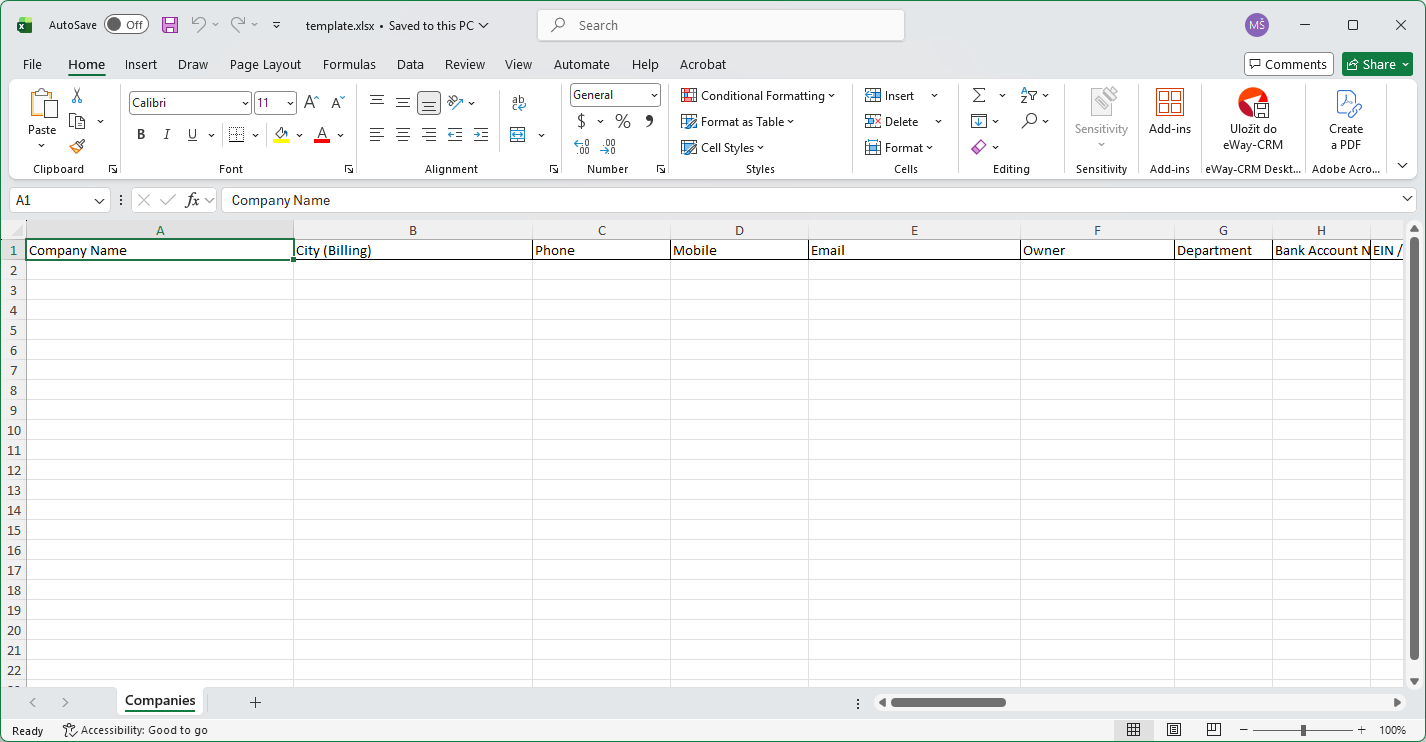
eWay-CRM Desktop
- Importing Companies
- Importing Contacts
- Importing Journals
- Importing Products
- Importing Deals / Projects
The Import from Microsoft Excel option might be a very useful feature especially if you need to migrate from another CRM or if you have purchased a contact list and you want to move these contacts to eWay-CRM and track communication with them.
eWay-CRM allows you to import Companies, Contacts, Deals, Projects, and Products.
eWay-CRM allows you not only to import new items but also bulk change existing items. For more information, please go to eWay-CRM documentation.
Importing Companies
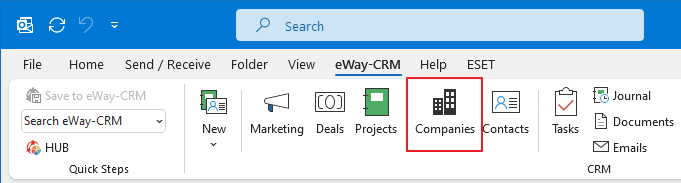
- Click on the Companies tab on the eWay-CRM ribbon.
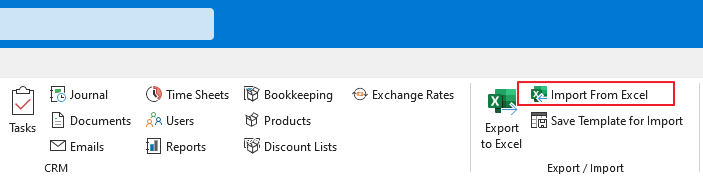
- On the eWay-CRM ribbon, click on the button Import From Excel and select Excel file for import. Alternatively, you can simply drag-and-drop the file.
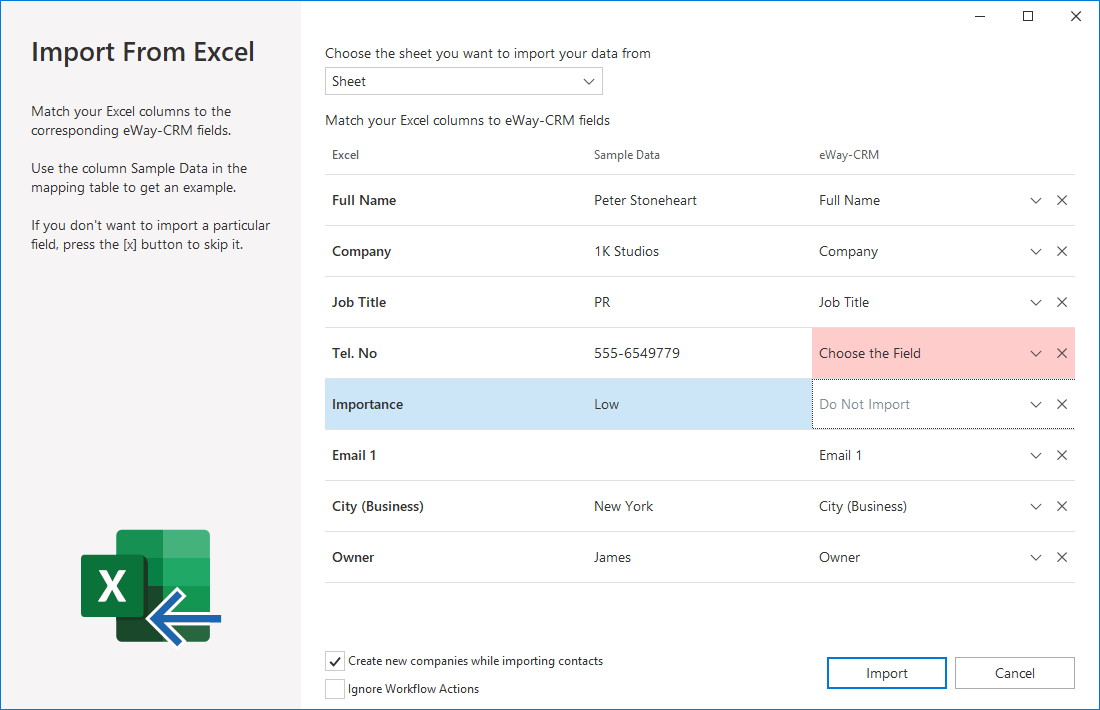
- You will see the table where you can pair Excel columns with eWay-CRM columns. You specify what columns will be imported to where in eWay-CRM. If the names of columns in Excel and eWay-CRM are the same, eWay-CRM recognizes them and pairs them automatically.
- To correct pairing, click on the value in the eWay-CRM column and select the column to which the excel column will be imported.
- If there are some errors during import, you will see the error dialog, where you can fix all these errors or skip them. If you click the magnifying glass in the Excel Value column, you will see the whole row where the error is.
- If everything is correct, just click Try Again.
- Import should be finished successfully and your data is saved to eWay-CRM. Please, check that your data is imported correctly.
Importing Contacts
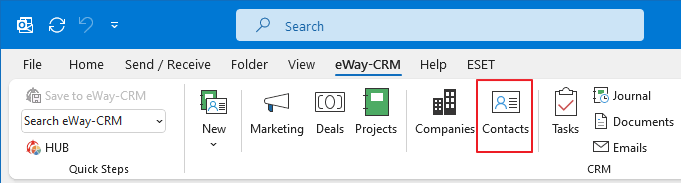
- Click on the Contacts tab on the eWay-CRM ribbon.
- On the eWay-CRM ribbon, click on the button Import From Excel and select Excel file for import. Alternatively, you can simply drag and drop the file.
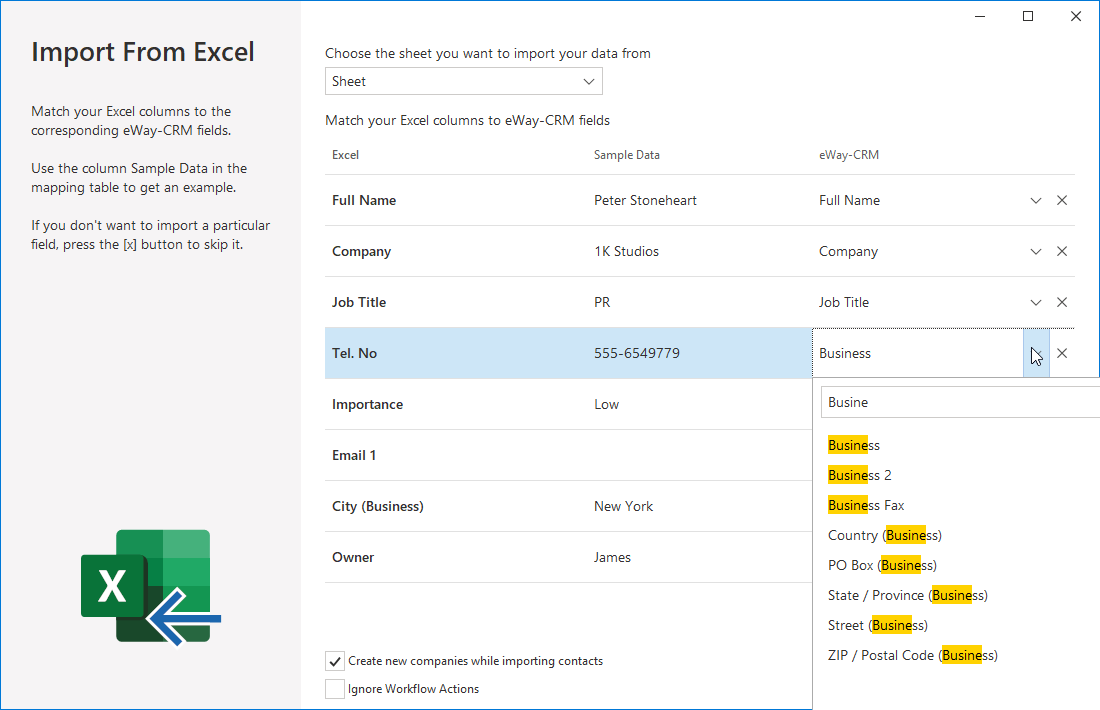
- You will see the table where you can pair Excel columns with eWay-CRM columns. You specify what columns will be imported to where in eWay-CRM. If the names of columns in Excel and eWay-CRM are the same, eWay-CRM recognizes them and pairs them automatically.
- You can see this dialog when importing contacts. eWay-CRM imports name as a full name but also as its parts (name, surname, suffix, etc.). Select the option that suits you. If you select Full Name, just confirm this dialog. You can change your choice during the mapping of importing fields.
- To correct pairing, click on the value in the eWay-CRM column and select the column to which the excel column will be imported.
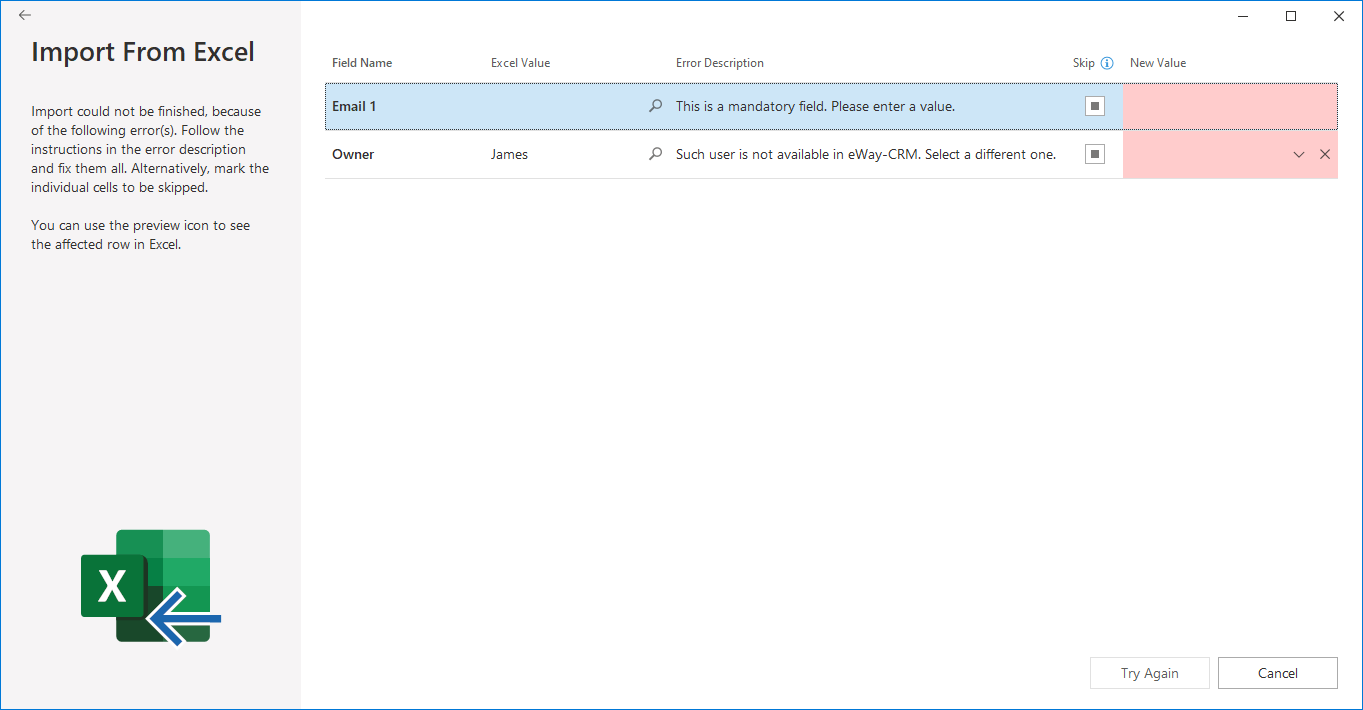
- If there are some errors during import, you will see the error dialog, where you can fix all these errors or skip them. If you click the magnifying glass in the Excel Value column, you will see the whole row where the error is.
- If everything is correct, just click Try Again.
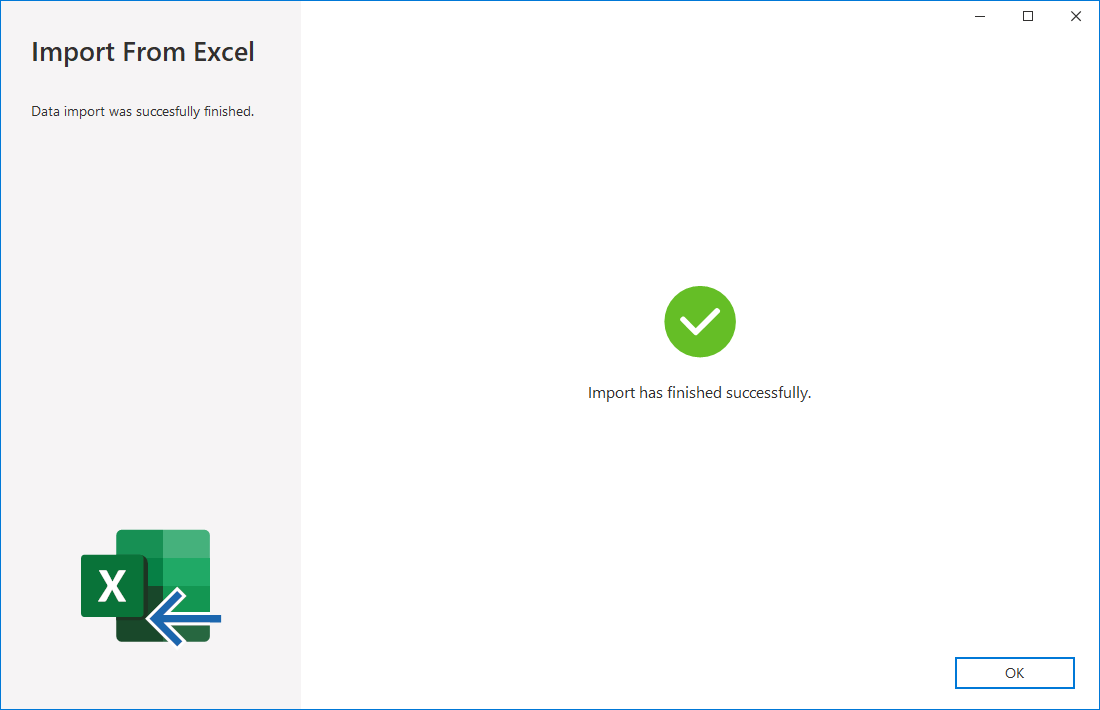
- Import should be finished successfully and your data is saved to eWay-CRM. Please, check that your data is imported correctly.

Importing Journals
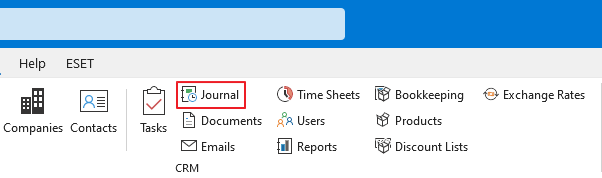
- Click on the Journals icon on the eWay-CRM ribbon.
- On the eWay-CRM ribbon, click on the button Import From Excel and select Excel file for import, you can simply drag-and-drop the file.
- You will see the table where you can pair Excel columns with eWay-CRM columns. You specify what columns will be imported to where in eWay-CRM. If the names of columns in Excel and eWay-CRM are the same, eWay-CRM recognizes them and pairs them automatically.
- To correct pairing, click on the value in the eWay-CRM column and select the column to which the excel column will be imported.
- If there are some errors during import, you will see the error dialog, where you can fix all these errors or skip them. If you click the magnifying glass in the Excel Value column, you will see the whole row where the error is.
- If everything is correct, just click Try Again.
- Import should be finished successfully and your data is saved to eWay-CRM. Please, check that your data is imported correctly.
Importing Products
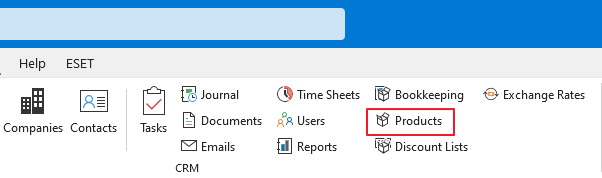
- Click on the Products tab on the eWay-CRM ribbon.
- On the eWay-CRM ribbon, click on the button Import From Excel and select Excel file for import, you can simply drag-and-drop the file.
- You will see the table where you can pair Excel columns with eWay-CRM columns. You specify what columns will be imported to where in eWay-CRM. If the names of columns in Excel and eWay-CRM are the same, eWay-CRM recognizes them and pairs them automatically.
- To correct pairing, click on the value in the eWay-CRM column and select the column to which the excel column will be imported.
- If there are some errors during import, you will see the error dialog, where you can fix all these errors or skip them. If you click the magnifying glass in the Excel Value column, you will see the whole row where the error is.
- If everything is correct, just click Try Again.
- Import should be finished successfully and your data is saved to eWay-CRM. Please, check that your data is imported correctly.
Importing Deals / Projects
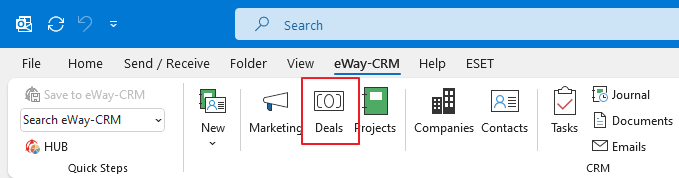
- For Deals, click on the Deals tab on the eWay-CRM ribbon.
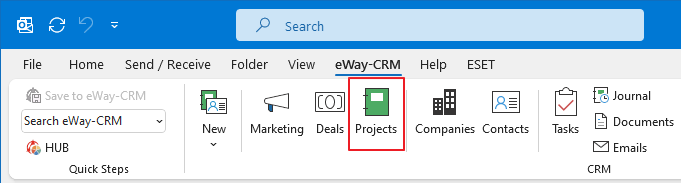
- For Projects, click on the Projects tab on the eWay-CRM ribbon.
- On the eWay-CRM ribbon, click on the button Import From Excel and select Excel file for import. Alternatively, you can simply drag and drop the file.
- You will see the table where you can pair Excel columns with eWay-CRM columns. You specify what columns will be imported to where in eWay-CRM. If the names of columns in Excel and eWay-CRM are the same, eWay-CRM recognizes them and pairs them automatically.
- To correct pairing, click on the value in the eWay-CRM column and select the column to which the excel column will be imported.
- If there are some errors during import, you will see the error dialog, where you can fix all these errors or skip them. If you click the magnifying glass in the Excel Value column, you will see the whole row where the error is.
- If everything is correct, just click Try Again.
- Import should be finished successfully and your data is saved to eWay-CRM. Please, check that your data is imported correctly.
Please feel free to contact us if you need help with importing data or if you want us to do it for you.
Was it useful?