

SharePoint as Fuel for Copilot: How to Get More Out of AI


Microsoft Copilot can save hours every week. But the quality of its answers depends on something many teams overlook: how well their documents are organized in SharePoint.

When people want better results from Copilot, they usually focus on prompts.
That helps. But prompts are only half of the story.
Right now, file management matters more than before. The topic is becoming more relevant as Microsoft highlights the new SharePoint experience. In some organizations, that experience may already be active. In others, it may still need to be enabled first, depending on your Microsoft 365 setup and admin settings.
Either way, the message is the same: if your files are structured well, Copilot has much better material to work with.
The New SharePoint Experience Makes This More Important
SharePoint itself is not new.
What is new is how important it becomes in day-to-day AI workflows.
As teams use Copilot more often, document structure starts to matter in a more visible way. A cleaner SharePoint helps people find information faster. It also helps Copilot summarize, compare, and analyze files with better results.
So if your organization still uses older SharePoint views or mixed experiences in some places, this is a good moment to check whether the new SharePoint experience is already enabled. If not, that may be the first step before you start expecting smoother AI-driven workflows.
Copilot + SharePoint Is a Must-Have Combo
Copilot becomes much more useful when it works with actual company files.
In practice, this means opening Copilot chat, clicking the + button, choosing Attach cloud files, and selecting the files or folders you want Copilot to analyze. Instead of copying content manually into the prompt, you work directly with files stored in SharePoint.
That changes the experience immediately.
Now Copilot is not responding to a vague request. It is working with your meeting notes, your client documents, or your project materials. That gives it more context—and usually gives you a more relevant answer.
This is where SharePoint stops being “just a place to store files” and starts acting like fuel for AI.
5 SharePoint Habits That Make Copilot More Useful
1. Organize folders by work, not by people
Avoid folder structures based on employee names or personal habits.
A structure like this is much easier to work with:
- Clients
- Projects
- Meeting Notes
- Proposals
- Internal Docs
This makes it easier for anyone on the team to find the same material — and easier to point Copilot to the right source.
2. Use a naming convention
If every team member names files differently, Copilot gets inconsistent context.
A simple format works well:
YYYY-MM-DD – Client – Topic – Type
Example:
2026-05-02 – ACME – QBR – Meeting Notes
You do not need a perfect taxonomy. You just need consistency.
3. Separate working files from finished files
If possible, use simple subfolders such as Working and Final.
This helps Copilot focus on completed material when you need reliable summaries, patterns, or comparisons.
4. Keep meeting notes in one consistent place
This is one of the fastest wins.
If all meeting notes live in one clearly named folder, you can use Copilot to detect repeated client concerns, summarize project progress, or identify delays across multiple conversations.
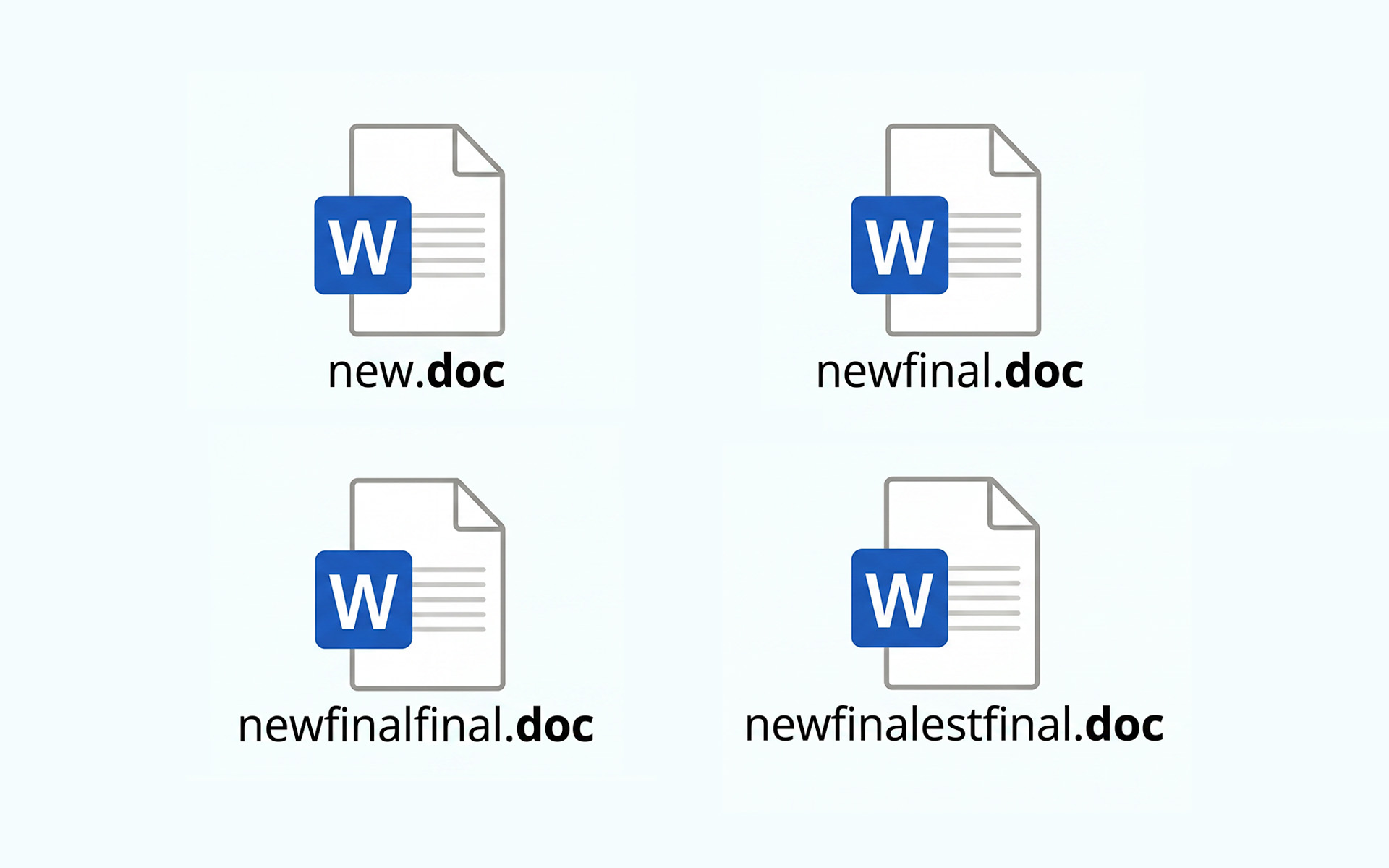
5. Stop creating duplicate “final” files
This is the classic problem.
If your SharePoint contains duplicate “final” files, then nobody knows what the actual source of truth is.
SharePoint already supports document versioning, so teams can manage updates without creating endless copies.
5 Practical Prompts to Try with SharePoint Files
If you want to turn this into something your team can use right away, here are a few prompts worth testing:
1. Analyze recurring client concerns
“Review these meeting notes and tell me what topic clients mentioned most often in the last 3 months.”
A great fit for sales, account management, or customer success teams.
2. Extract action items
“Summarize the key action items from these documents and group them by client.”
Useful when you have multiple follow-up notes spread across several files.
3. Find repeated blockers
“Compare these project notes and identify the most common blockers.”
Helpful for project managers who want to spot patterns early.
4. Prepare for a meeting
“Based on these files, give me a short briefing before my next client call.”
This is one of the easiest ways to save time before a meeting.
5. Review proposal messaging
“Analyze these proposal documents and tell me which value propositions appear most often.”
A simple way to learn what your team emphasizes in winning materials.
These prompts are not complicated. That is the point. You do not always need a sophisticated AI workflow. Often, you just need organized files and a good business question.
Better Inputs Lead to Better Outputs
There is a simple lesson behind all of this. If you want better answers from Copilot, start with better inputs.
In many companies, those inputs live in SharePoint. So if your team is serious about getting more out of Microsoft 365 AI tools, document hygiene should be part of the conversation.
Not because it sounds strategic. But because it works.
When SharePoint is structured well, Copilot becomes much more than a writing assistant. It becomes a practical tool for analyzing documents, surfacing insights, and helping your team move faster with the information it already has.
That is why SharePoint is not just a place to store files. In the age of AI, it is part of the fuel behind better work.