
Does Microsoft Force You to Use New Outlook on Your MS 365 Device? Here’s How to Come Back to the Classic One


Microsoft is making the new Outlook the default experience for more Microsoft 365 users. If you've been switched automatically and prefer Classic Outlook, here's how to get it back.
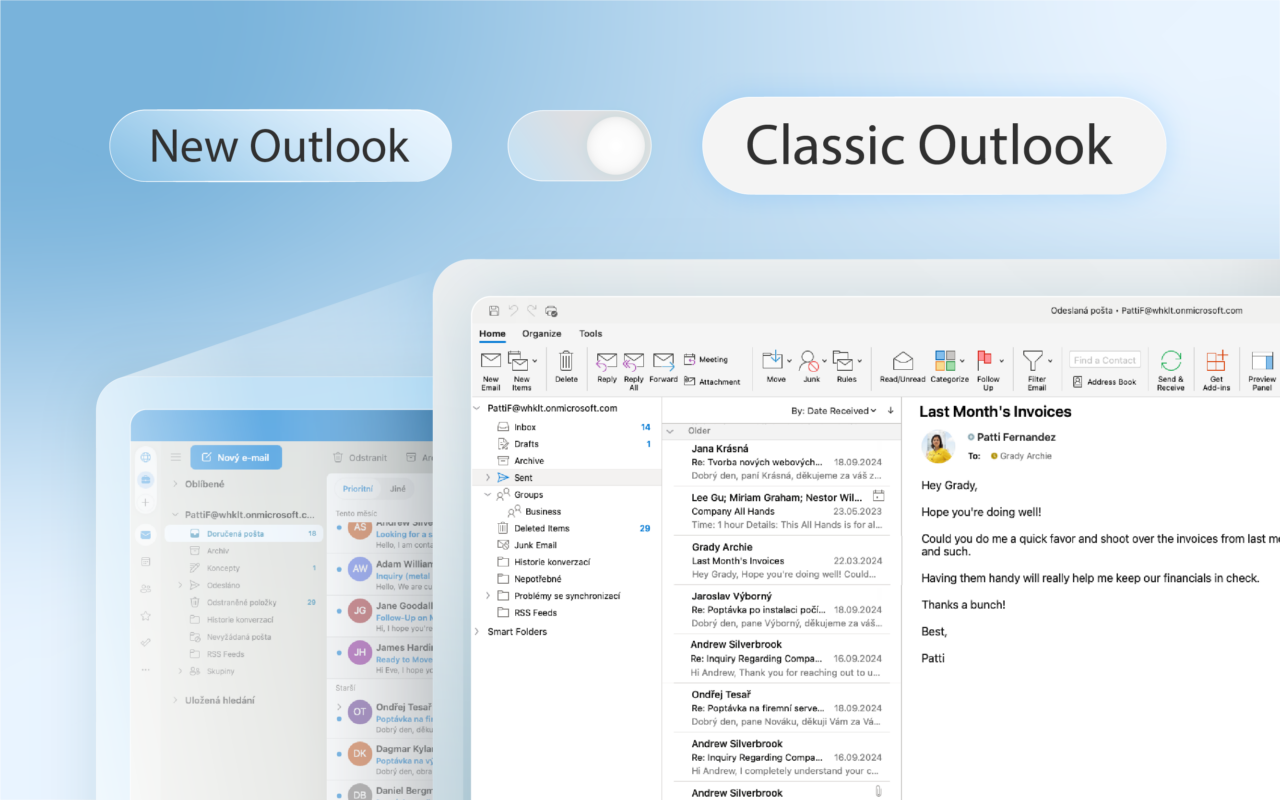
Microsoft began automatically migrating eligible Microsoft 365 users to the new Outlook in phases. Depending on your organization's policies, you may be switched automatically, but administrators can still control the rollout and many users can return to Classic Outlook.
Table of contents:
How to Toggle Out of the New Outlook
Can’t See the Toggle? Do This
None of the Above-Mentioned Works for Me
Using The Classic Outlook is Still Possible
FAQ
How to Toggle Out of the New Outlook
In this case, you’re automatically toggled into the new Outlook for Windows.
So, every time you try to launch classic Outlook for Windows, you’re redirected to the new Outlook preview.
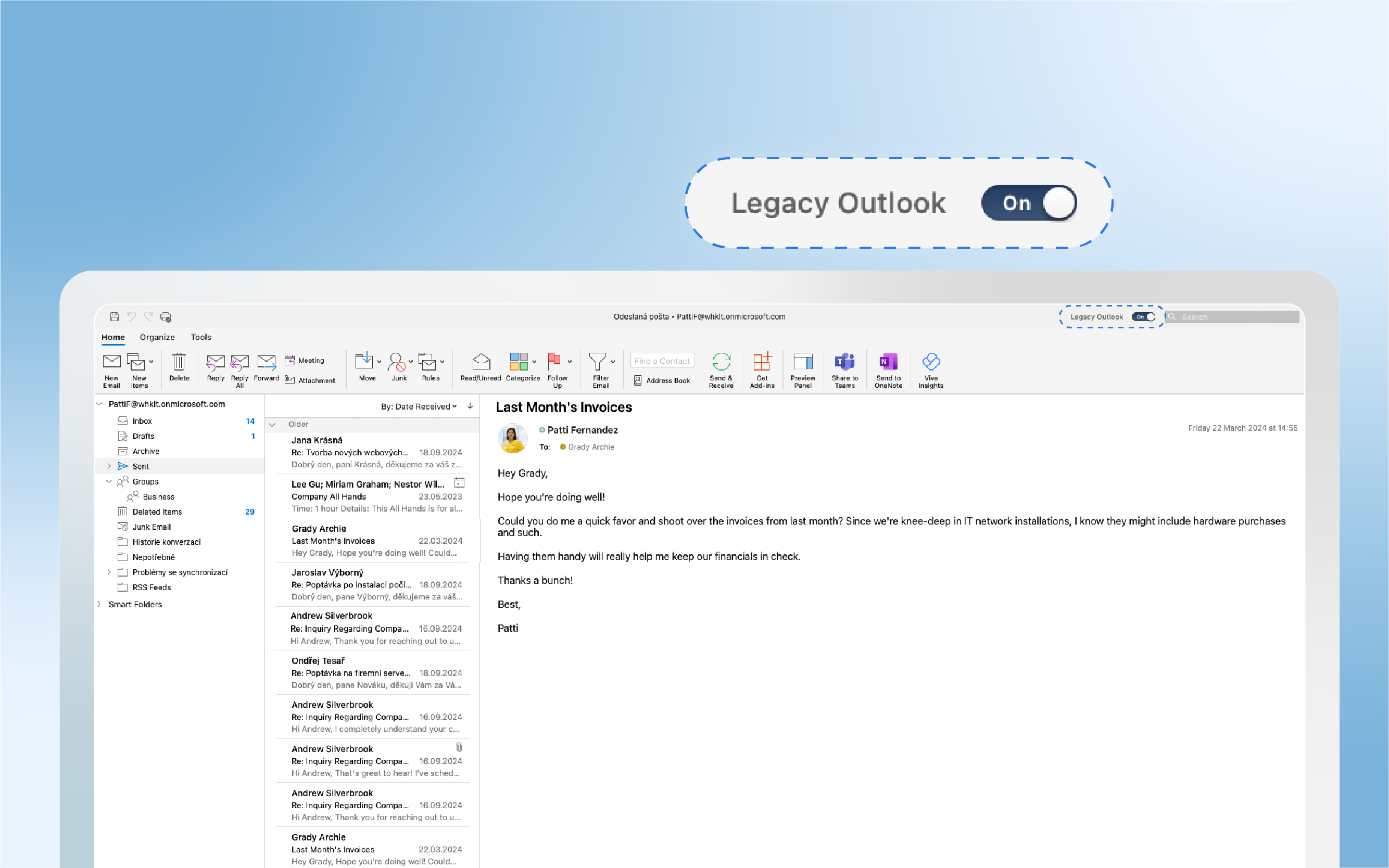
Stop this by selecting the toggle in the new Outlook for Windows app.
Can’t See the Toggle? Do This
“But I can’t see the toggle anywhere…” is this your reaction to the simple toggle guide?
It can happen. In that case, follow these steps:
- Make sure you try to launch classic Outlook for Windows from the Windows Start Menu, not the new Outlook for Windows. The new Outlook for Windows has a New tag on its app icon. For classic Outlook, select the icon without a New tag.
- From the Windows Start Menu, type Registry Editor in the search box and select the Registry Editor app.
- Navigate to the following path: Computer\HKEY_CURRENT_USER\Software\Microsoft\Office\16.0\Outlook\Preferences
- Scroll to the bottom of the list and double-click on UseNewOutlook.
- Enter 0 in the Value Data
- Attempt to launch classic Outlook for Windows from the Windows Start Menu.
If you can't open classic Outlook on a new Windows PC, download it via Microsoft web.
None of the Above-Mentioned Works for Me
If none of the above-mentioned works for you, you still have one option to go with.
As a last resort, you can solve this situation in a more radical way:
- uninstall the pre-installed Microsoft 365
- install the classic Outlook
- install Microsoft 365 back
Using The Classic Outlook is Still Possible
Microsoft started transitioning users from Classic Outlook to the new Outlook experience on January 6, 2025, beginning in the U.S. and expanding globally.
If the new version does not feel great yet, you can still switch back. Microsoft has stated that existing installations of Classic Outlook on both perpetual and subscription licenses will remain supported until at least 2029. You don't need to rush your decision. Classic Outlook will be around for a few more years.
And if you're curious about what's changed and what's bad, check out our detailed review of the new Outlook. We update it regularly as Microsoft adds features, changes the experience, and releases new updates.
After all, the tools we use every day can have a real impact on productivity, focus, and even stress levels. If email feels overwhelming, you may also find helpful our article on the psychology of email stress and how to fight it.
FAQ
Can I still use classic Outlook in 2026?
Yes. Microsoft has stated that classic Outlook will remain supported for existing installations until at least 2029.
Why don't I see the switch to go back to classic Outlook?
In some cases, the toggle may not be visible. This can happen when Outlook settings have already been modified or when Windows redirects you directly to the new Outlook experience. The article explains alternative methods to restore access to classic Outlook.
How do I switch from new Outlook back to classic Outlook?
The easiest method is to use the toggle inside the new Outlook app. If that option is unavailable, you may need to adjust the UseNewOutlook setting in the Windows Registry or reinstall classic Outlook.
Is the new Outlook replacing classic Outlook permanently?
Microsoft is gradually moving users toward the new Outlook experience, but classic Outlook is still supported and available. Organizations and users have time to evaluate whether they want to switch.
Can I install classic Outlook on a new PC?
Yes. If classic Outlook is not available on your new Windows device, Microsoft provides a way to download and install it separately.
Should I switch to the new Outlook?
That depends on your needs. The new Outlook continues to improve, but some users still prefer classic Outlook because of its familiar interface, features, or compatibility with existing workflows and add-ins. This is why Microsoft currently allows users to continue using classic Outlook.