

The Best Way to Organize Emails in Outlook: Practical Tips for the New Outlook


Effective email organization in the new Outlook starts with solving two common problems: inbox clutter and hard‑to‑find messages. When emails aren’t sorted or easy to share with your team, you lose time searching, tracking threads, and managing duplicates. This guide shows simple, practical steps to organize Outlook, keep your inbox clean, and work faster with a system you can maintain.

According to Microsoft’s 2025 Work Trend Index Special Report, the average worker receives 117 emails a day, with most of them skimmed in under 60 seconds.
Without a simple system, your inbox can quickly become a maze of threads, priorities, and missing context.
This guide shows clear, practical ways to organize the new Outlook so you can work faster and keep your team aligned.
Table of contents:
Do You Know How to Deal with E-mail Organization?
Top Tips to Organize and Share Emails in New Outlook
New Outlook Add-ins
Outlook Professionals Manage Addresses, Attachments, and Threads
FAQ: Organizing Your New Outlook
Do You Know How to Deal with E-mail Organization?
The two main problems in Microsoft Outlook are simple: no clear system for storing emails and inefficient sharing within your team.
Without a structure, your inbox fills with scattered messages. This makes it harder to find what you need or follow longer threads. If messages aren’t sorted or labeled, locating specific emails or tracking conversations becomes slow and frustrating.
The second issue is sharing. Forwarding emails looks easy, but it wastes time and creates multiple versions of the same message. Team members end up guessing which copy is current, and everyone loses time sorting through duplicates.
Most of these issues disappear once your new Outlook is organized with a clear, simple system.
Top Tips to Organize and Share Emails in New Outlook
1. Use Folders, Categories, and Copilot Rules for Quick Organization
So, what is the best way to organize emails in Outlook? Start with a folder structure that is simple enough to maintain. Create folders for the main areas of your work, such as key clients, active projects, invoices, follow-ups, or internal updates. Avoid creating too many nested folders, because the more complex your structure becomes, the harder it is to use every day.
If you are wondering how to organize folders in Outlook, think in broad groups first. For example, you can use folders such as “Clients,” “Projects,” “Finance,” “Follow-Up,” and “Archive.” Then use categories to add extra context, such as priority, status, or department. This way, folders decide where an email lives, while categories help you understand what needs attention.
In Microsoft 365 Copilot, you can also create Outlook rules using natural language. For example, you can ask Copilot to move emails from a specific person to a folder, categorize emails from your manager as important, or move emails with a certain word in the subject line to a selected folder. Copilot shows a summary of the rule before it creates anything, and rules apply only to future incoming emails.
If the folder or category you mention does not exist yet, Copilot can confirm creating it together with the rule. For example, you can ask it to move future invoices into an “Invoices” folder. If that folder does not exist, Copilot explains what will be created and asks for confirmation first.
A practical folder system could look like this:
- Clients — customer conversations you need to keep accessible.
- Projects — active work grouped by project or account.
- Follow-Up — emails that need a reply or next action.
- Finance — invoices, payments, and billing-related messages.
- Archive — older messages you want to keep but do not need in your inbox.
The goal is not to file every email perfectly. The goal is to make your inbox easier to trust. When routine messages move automatically, important emails stand out faster, and you spend less time dragging messages around manually.
2. Don't Underestimate Rules and Filters for Automation
Set up rules to automatically route emails into specific folders.
Do you wonder how to organize emails in your Outlook by sender? Or how to organize emails in Outlook by subject?
Assign categories based on the given information and keywords. This is especially useful for sorting recurring emails (like newsletters or team notifications) without manual intervention.
Use filters for customized views, like "Unread Important" or "Flagged".
3. Use Focused Inbox for Priority Management
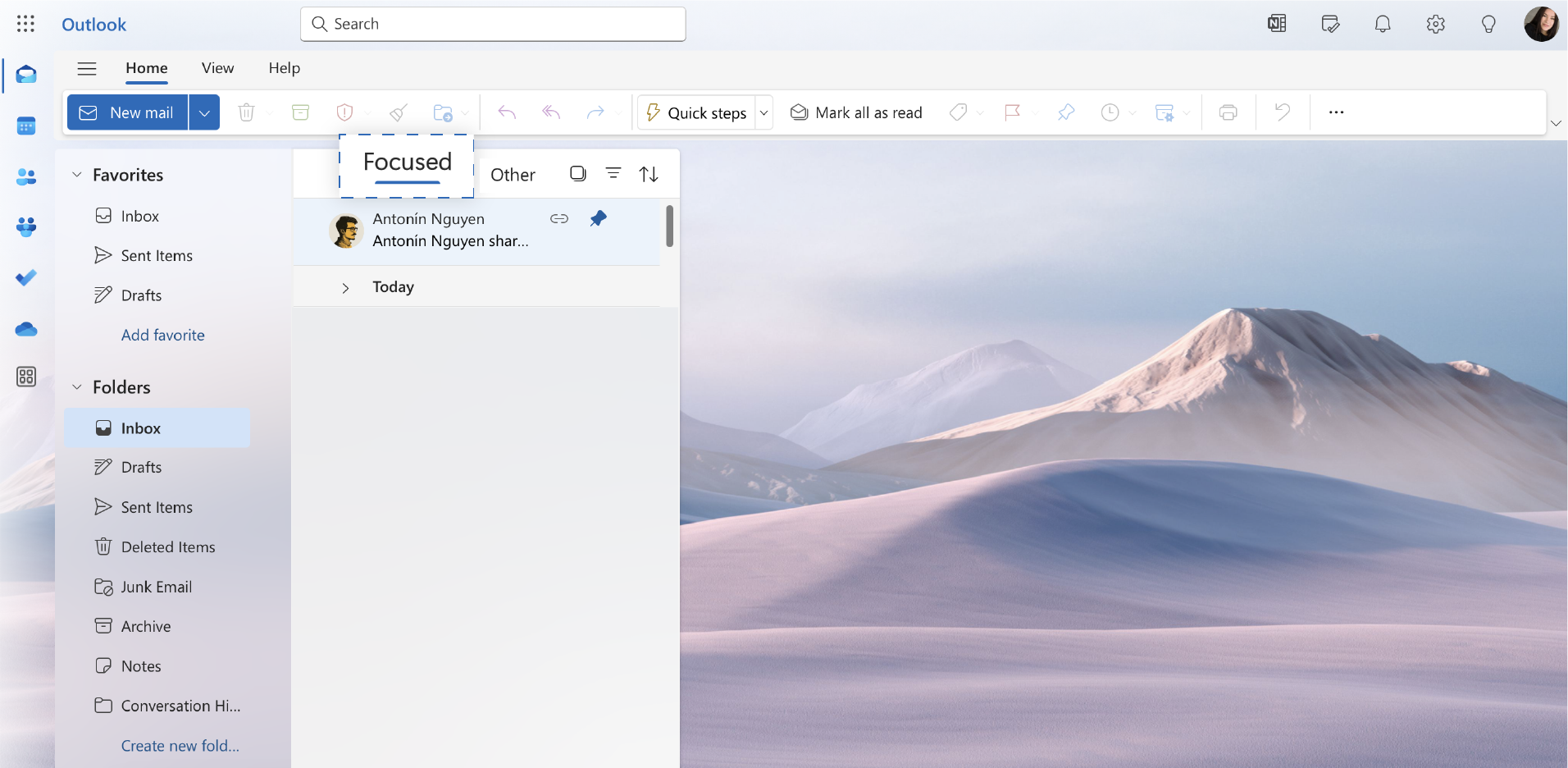
Focused Inbox sorts important messages into “Focused” and less important mail to “Other” tabs. Thanks to this you'll know which messages you should prioritize.
This works best when you regularly mark emails as “Focused” or “Other” to improve the overall sorting accuracy.
4. Set Up Shared Mailboxes and Calendar Invites for Team Collaboration
Instead of forwarding emails, create a shared mailbox for team collaboration on group emails.
You can also set up shared folders for teams. This improves visibility into project-related emails.
If you want your colleagues to stay well-informed for each of your meetings, link emails to shared calendar invites. Thanks to this, you'll keep relevant information easily accessible to attendees and ensure everyone always has the needed background.
5. Use @Mentions for Clear Assignments
Tag team members with @Mentions in emails to notify them and assign specific tasks or questions to them. They’ll be then able to filter emails with their mentions in them.
6. Pin or Flag Important Emails
Pinning and Flagging bring priority emails to the top of your inbox for easy access. Use these to mark emails requiring urgent response or further action.
7. Quick Steps and Templates
Start using Quick Steps to customize actions and speed up your workflow. These include much-needed moving emails to specific folders or assigning categories in one click.
Also save common responses as templates. Templates ensure consistency, which customers love. Especially for frequently asked questions or updates.
8. Schedule Emails to Control Timelines
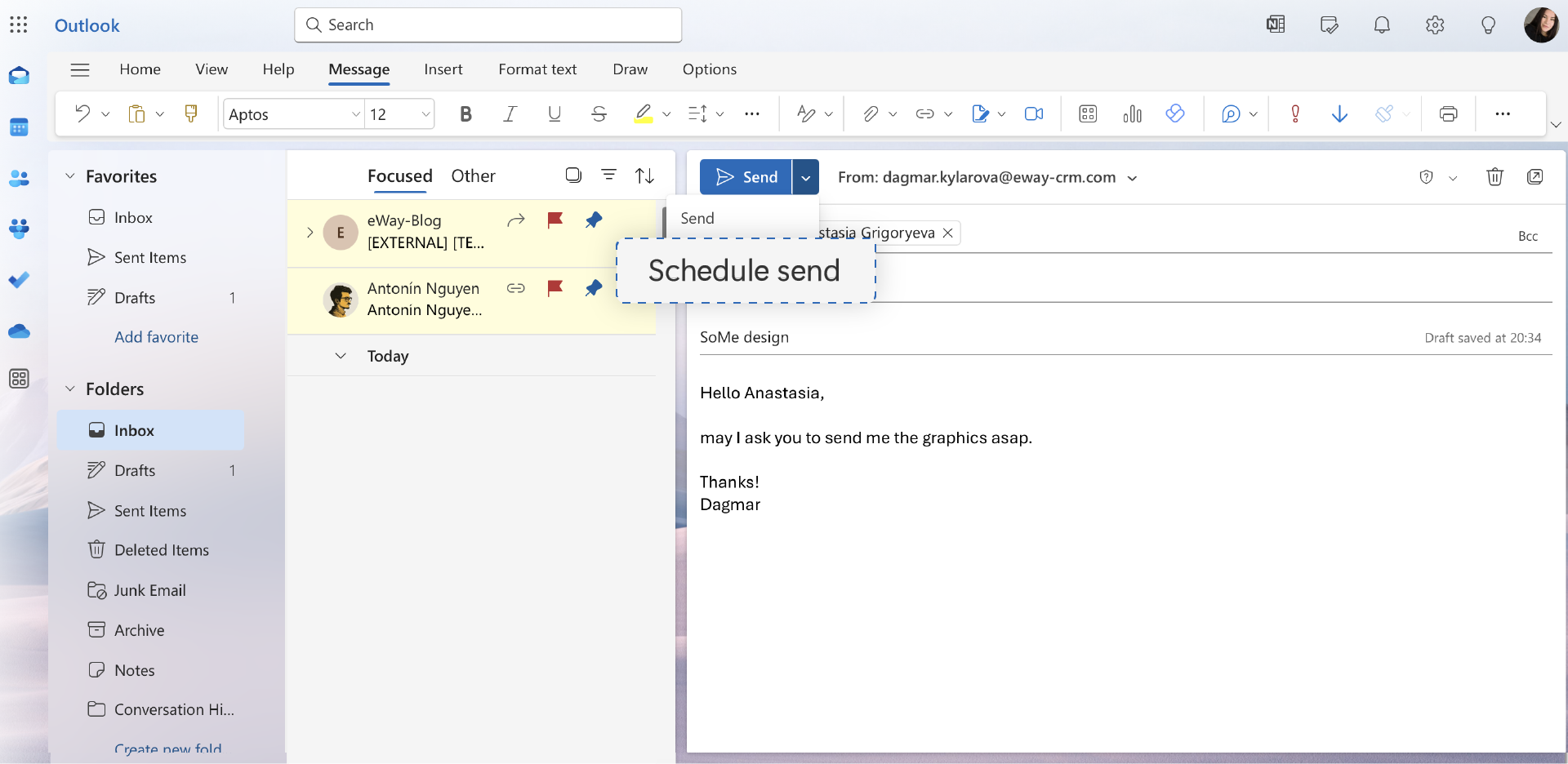
Schedule emails by selecting Schedule Send.
This function is especially useful for managing replies during peak hours. And thanks to it, you'll always ensure emails arrive at a convenient time for their recipients.
9. Make Use of Search Tools and Search Folders
Use the search bar with keywords, sender names, or phrases to locate older emails.
Create Search Folders for recurring queries, like Unread Team Emails or Last Month’s Sales. They auto-populate based on your search criteria, making it easy to find grouped emails.
10. Make Clearing Your Inbox a Routine
Move old or inactive emails to an Archive folder to clear your inbox without deleting essential information. This way, you'll be able to always come back to them.
And if you know you won't come back to a particular message, move it to the bin.
New Outlook Add-ins
If you wonder how to automatically organize emails in Outlook, we have some add-in and app tips to help you.
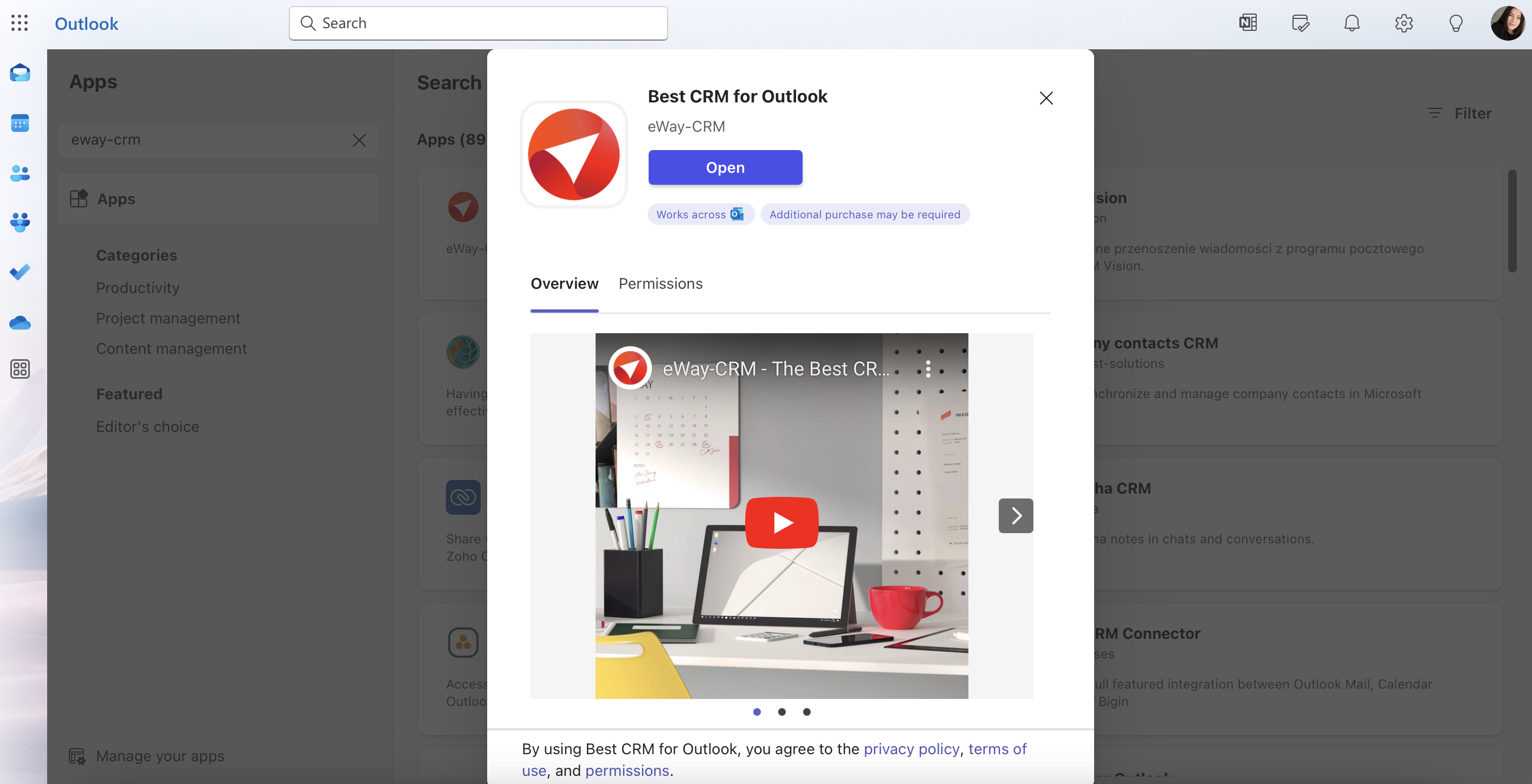
The add-ins are email-based. You can add them by clicking Add apps on the left ribbon to get to the Office Store, then you search for the app and install it. Here's our guide on how to do that step by step:
List of helpful Add-ins for the new Outlook:
- How to organize your email inbox > Boomerang
- How to organize incoming emails in Outlook > Microsoft To Do
- How to organize group emails in Outlook > Mailbutler
- How to organize email folders in Outlook > EmailCaddie
- How to organize email addresses > ContactMonkey
- How to organize Outlook emails and share them across a company > eWay-CRM
Outlook Professionals Manage Addresses, Attachments, and Threads
How to organize addresses in your favorite email client
- Create contact lists - Group contacts, such as Clients or Teams. Additionally, you can assign categories to contacts for quick filtering and organization.
- Add notes - Outlook's contact management allows you to add notes to individual contacts. This will help you to keep track of preferences, history, or relevant projects.
- Leverage People view - The People tab in Outlook on the web provides a centralized view of your contacts. It allows you to see recent interactions and manage contact information efficiently.
How to organize attachments in Outlook email
- Use OneDrive - Instead of sending large attachments via email messages, upload them to OneDrive. Then, share links with your colleagues. Thanks to this, you'll keep your mailbox size manageable and simplify file retrieval.
How to organize email threads in Outlook
Are you struggling with how to organize emails in Outlook by thread? Try these two:
- Show as Conversations option - Outlook on the web lets you turn on the "Show as Conversations" feature. This feature groups email threads into one conversation view. This makes it easier to track discussions.
- Use Thread rules - You can create rules in Outlook on the web to automatically move specific threads to selected folders.
FAQ: Organizing Your New Outlook
How many emails does the average Outlook user receive each month?
Most people receive thousands of emails each month, with only a portion needing immediate attention. A simple system helps prevent overload.
Why is organizing Outlook so important?
A structured inbox makes it easier to find messages, follow threads, and avoid mistakes. It also reduces stress and helps you work faster.
What are the biggest challenges when managing emails in Outlook?
The most common issues are a lack of a clear storage system and relying on forwarding to share emails, which leads to confusion and delays.
What features help manage email volume effectively?
Tools like Focused Inbox, rules for auto-sorting, and a small set of folders help keep the inbox clean and manageable.
How can I keep related emails together?
Enable Conversation View to group replies and keep long threads in one place.
What’s the best way to share emails with colleagues?
Use a shared system like eWay-CRM instead of forwarding. Everyone sees the same message history without duplicates.
Can Outlook work as a shared information hub for teams?
Yes. With tools like eWay-CRM, teams can access shared emails, tasks, notes, and contact details directly inside Outlook.
Does eWay-CRM include AI features?
Yes. It can summarize emails, detect tone, and automatically match messages to contacts or companies.
Can I convert emails into tasks or projects?
Yes. You can convert emails into tasks, deals, contacts, or projects with a simple Convert action.
Does eWay-CRM sync with Outlook tasks and calendar?
Yes. Tasks and meetings can link to contacts, companies, deals, or projects so everything stays organized across the team.